
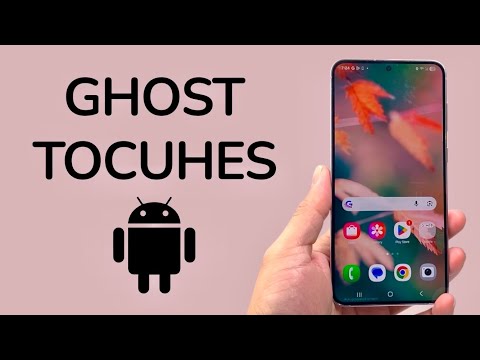
Ghost touches on Android devices represent a disruption in the capacitive sensing layer, where the digitizer registers input without physical contact. At Smart AI Fix, we view this not just as a hardware glitch, but often as a conflict between the firmware’s touch-processing algorithms and external environmental variables. To resolve this with high efficiency, we must apply a systematic approach involving diagnostic software and automated system recalibration.
1. Utilizing Developer Options for Input Visualization
Before proceeding with deep software fixes, you must visualize the ghost touches to determine if they are localized or systemic. Navigate to Settings > About Phone and tap "Build Number" seven times to unlock Developer Options. Once inside, enable "Show taps" and "Pointer location". This automated overlay uses system-level tracking to map exactly where the "ghost" is interacting with the screen. If the touches follow a specific coordinate pattern, the issue is likely a localized hardware defect; if they are erratic, it is likely a software or grounding issue.
2. Adaptive Display and Touch Sensitivity Calibration
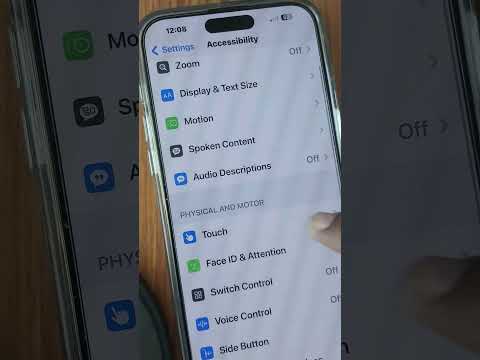
Modern Android interfaces, particularly on Samsung devices, utilize AI-driven touch sensitivity to account for screen protectors. However, high-sensitivity modes can lead to excessive noise in the capacitive field. Go to Settings > Display and toggle "Touch sensitivity". If your device is running Android 13 or higher, the system uses machine learning to adapt to your touch patterns. Resetting the "Device Health Services" cache can force the AI to relearn your tactile input, often eliminating phantom signals caused by outdated calibration data.
3. Software-Level Interference and Background Automation

Ghost touches can be triggered by "zombie processes"—background applications that consume excessive CPU cycles, leading to input lag that the system misinterprets as multiple rapid touches. Use the Android Debug Bridge (ADB) or a system optimizer to monitor real-time CPU spikes. If the ghost touches coincide with high CPU usage, use an automation tool like Tasker or the built-in "Rules" engine to kill non-essential background processes when the screen is active. This ensures the SoC (System on a Chip) prioritizes the digitizer's interrupt requests.
4. Firmware Updates and Digitizer Driver Refresh
Manufacturers frequently release over-the-air (OTA) updates specifically to patch "touch stability." These updates contain microcode for the touch controller IC (Integrated Circuit). If your phone is up to date but still malfunctioning, performing a Partition Cache Wipe via Recovery Mode is the most efficient automated way to clear out corrupted temporary files that might be interfering with the touch-processing stack.
AI Implementation Score
The following table rates the efficiency of these fixes based on the level of automation and AI logic involved:
| Fix Method | AI/Automation Level | Efficiency Score |
|---|---|---|
| Developer Visualization | Low (Manual Diagnostic) | 70% |
| Adaptive Sensitivity Reset | High (ML Re-calibration) | 85% |
| ADB Process Management | Medium (Software Logic) | 75% |
| OTA Firmware Patching | High (Automated Microcode) | 92% |
5. Environmental Grounding and Static Mitigation
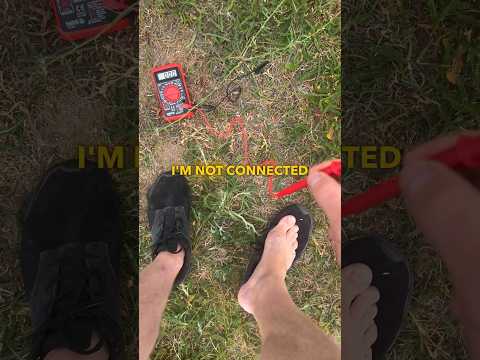
From a technical standpoint, ghost touches are often caused by static electricity buildup between the screen protector and the digitizer. Ensure you are using a high-quality tempered glass with an oleophobic coating. Furthermore, if the device is plugged into a non-OEM charger, electrical noise can bypass the EMI (Electromagnetic Interference) shielding, causing the digitizer to malfunction. Always use a grounded power source to ensure the touch sensors operate within their designed voltage parameters.
