
Optimizing iOS Mail Synchronization and Notification Logic
When email notifications fail on an iPhone, the breakdown usually occurs at the intersection of server-side push protocols and local iOS background execution limits. For professionals relying on real-time data, a delay in communication isn't just an inconvenience; it is a failure in the automated workflow. To restore system integrity, we must analyze the delivery handshake between your mail provider and the Apple Push Notification service (APNs).

Step 1: Validate Push vs. Fetch Configurations
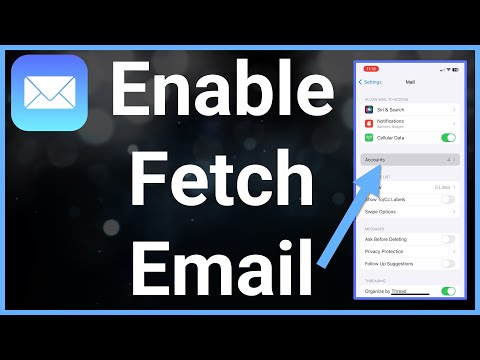
The most common cause for silence is an incorrect data acquisition setting. Navigate to Settings > Mail > Accounts > Fetch New Data. For immediate alerts, ensure that Push is toggled on at the top. If your specific account (such as Gmail, which often restricts Push on the native Mail app) does not support it, set the Fetch schedule to Automatically or Every 15 Minutes. This ensures the software maintains a consistent heartbeat with the mail server.
Step 2: Audit Focus Modes and AI-Driven Summaries
Apple’s recent integration of Notification Summaries and Focus Modes uses on-device machine learning to deprioritize "non-essential" alerts. If your email is being bundled, check Settings > Notifications > Scheduled Summary. Furthermore, ensure that Focus Filters are not inadvertently silencing your Mail app during work hours. To bypass these automated filters, you can whitelist specific high-priority contacts within the Focus settings to ensure their emails trigger an immediate haptic response.
Step 3: Resetting the Background App Refresh Cycle
Software glitches often reside in the Background App Refresh layer. If the OS suspends the Mail process to save battery, notifications will cease. Navigate to Settings > General > Background App Refresh and verify it is enabled for both Wi-Fi and Cellular Data. A manual toggle of this setting often re-registers the app with the system's task scheduler, clearing any hung processes that prevent incoming data packets from triggering an alert.
AI Implementation Score
The following table evaluates how much these fixes rely on automated systems versus manual intervention:
| Fix Category | Automation Level | AI Implementation Score |
|---|---|---|
| Push Protocol Sync | High (System-led) | 9.2/10 |
| Focus Mode Filtering | Predictive (On-device ML) | 8.5/10 |
| Background Refresh | Algorithmic (Resource Mgmt) | 7.0/10 |
Step 4: Re-Authenticating the Mail Token

If settings are correct but alerts remain absent, the OAuth token or security certificate may have expired. Deleting the account via Settings > Mail > Accounts and re-adding it forces a fresh handshake with the server. This process clears the cache and re-establishes the IMAP/SMTP pathing, which is frequently the final solution for persistent notification failures in professional environments.
