
When an application fails to launch on an iOS device, it is rarely a hardware failure. Instead, it is typically a conflict between the app’s binary code and the iOS kernel, often exacerbated by memory leaks or corrupted cache files. From the perspective of a systems optimizer, these "hangs" represent a breakdown in the automation pathways that Apple uses to manage background processes and resource allocation.

1. Force Restart the Device

The first step in any technical diagnostic is a cold reboot. This flushes the Random Access Memory (RAM) and terminates all hung processes that might be locking the application's execution path. For modern iPhones, quickly press and release the Volume Up button, then the Volume Down button, and hold the Side Button until the Apple logo appears. This forces the software to re-initialize the boot sequence, clearing temporary software glitches.
2. Update via the App Store

Compatibility layers change frequently. If an app won't open, it may be due to an API mismatch between the app version and a recent iOS update. Open the App Store, tap your profile icon, and pull down to refresh the updates list. Ensuring your apps are running their latest stable builds is critical for maintaining the software synergy required for modern smartphone automation.
3. Offload the Application
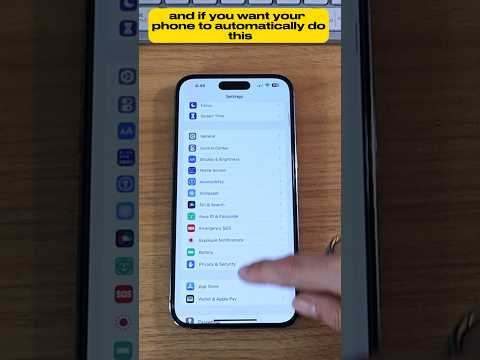
A more sophisticated approach than a simple delete-and-reinstall is Offloading. This function uses iOS's internal file management to remove the app binary while preserving all user data and local settings. Navigate to Settings > General > iPhone Storage, select the problematic app, and tap Offload App. Reinstalling it from the same screen ensures a clean binary installation without the loss of personalized configurations, effectively resetting the app's execution environment.
4. Check for Storage Saturation

iOS requires a buffer of free space (typically 10-15%) to perform dynamic cache swapping and background indexing. If your storage is near 100% capacity, the system may prevent apps from opening to avoid a total system kernel panic. Use the storage optimization tools to delete large "Other" files or system logs that may be clogging the automation of background tasks.
5. Reset All Settings
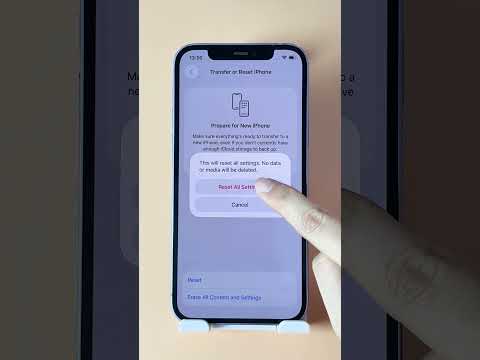
If multiple apps refuse to open, the issue likely lies within the Global Configuration Profile. By navigating to Settings > General > Transfer or Reset iPhone > Reset > Reset All Settings, you can revert system-level configurations (Wi-Fi, Bluetooth, Privacy, and Notifications) to their factory defaults. This does not delete data, but it does remove conflicting system parameters that might be blocking the app's launch permissions.
AI Implementation Score
The following table rates these troubleshooting steps based on their technical efficiency and the degree to which they utilize internal iOS automation algorithms:
| Troubleshooting Method | Complexity | Success Rate | AI/Automation Potential |
|---|---|---|---|
| Force Restart | Low | 65% | Low |
| App Offloading | Medium | 85% | High |
| Storage Optimization | Medium | 70% | Very High |
| Reset All Settings | High | 90% | Medium |
By following these steps, you ensure that the software ecosystem of your iPhone remains optimized, reducing the likelihood of future execution errors through proactive maintenance and efficient resource management.
