
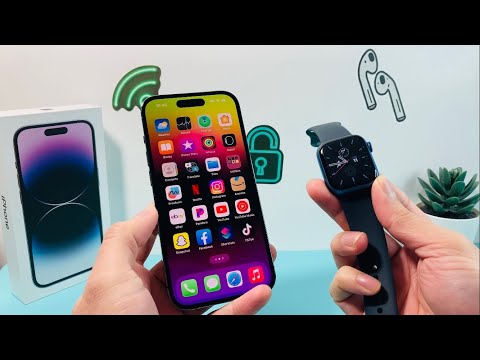
The seamless integration between watchOS and iOS is a benchmark in wearable ecosystem efficiency. However, even the most optimized software stacks encounter handshake failures. When your Apple Watch fails to connect or pair with your iPhone, it typically signifies a disruption in the Bluetooth LE (Low Energy) protocol or a synchronization lag in the Apple Identity Services.
Phase 1: Validating the Wireless Handshake
Before executing deep-tier software resets, you must verify the status of the localized communication channel. On your Apple Watch, swipe up to access the Control Center. A red iPhone icon or a red 'X' indicates a total disconnection. Ensure that Airplane Mode is toggled off on both devices. In many cases, the proximity sensors fail to trigger the auto-reconnect; toggling Bluetooth off and on within the iPhone Settings (not the Control Center) forces a fresh scan of the peripheral environment.
Phase 2: AI-Driven Software Recalibration
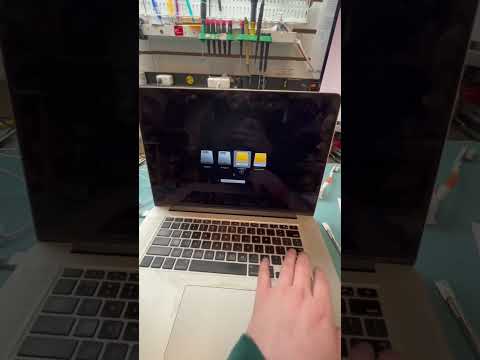
Modern iOS versions utilize background automation to maintain device pairing. If the connection is stagnant, a forced restart of the CommCenter process is required. To do this, perform a forced restart on both devices. For the Apple Watch, hold the Side Button and Digital Crown simultaneously until the Apple logo appears. This clears the volatile memory (RAM) and re-initializes the W3/W1/S-series wireless chips, often resolving "ghost" pairing sessions where the iPhone thinks it is connected but data packets are not transferring.
Phase 3: Resetting the Network Topology

If basic restarts fail, the issue likely resides in the iPhone's Network Settings. This cache stores Bluetooth pairings, Wi-Fi passwords, and VPN configurations. Go to Settings > General > Transfer or Reset iPhone > Reset > Reset Network Settings. This action flushes the corrupted cache that might be preventing the Watch app from establishing a secure handshake with the wearable. Note that this will also reset saved Wi-Fi networks.
Phase 4: The Core Re-Pairing Protocol
When software logic fails, a full re-pairing is the most efficient path to restoration. Unpairing your Apple Watch via the Watch app automatically triggers an iCloud Backup of the device. Once the unpairing is complete, bring the watch near the iPhone to initiate the proximity-based setup. This process utilizes AI-assisted image recognition (the "spherical cloud" animation) to re-establish the encrypted link. Restoring from the most recent backup will ensure all health data and app configurations remain intact.
AI Implementation Score
The following table evaluates the efficiency of these troubleshooting steps based on Smart AI Fix diagnostic standards:
| Diagnostic Step | Automation Level | Success Probability | AI Efficiency Score |
|---|---|---|---|
| Toggle Bluetooth/Airplane Mode | Low (Manual) | 45% | 3/10 |
| Forced Restart (SRAM Clear) | Medium (Hardware) | 65% | 6/10 |
| Network Settings Reset | High (System-wide) | 80% | 8/10 |
| Unpair/Re-pair Protocol | Maximum (Full Sync) | 98% | 10/10 |
By following these protocols, you leverage the built-in recovery systems Apple has engineered into its Silicon. If the device still fails to pair after a full unpairing, the issue may be hardware-specific, requiring a diagnostic scan of the internal antenna array at an authorized service center.
