
When the Apple ecosystem identifies a security anomaly, its automated risk-mitigation systems often trigger a "locked" or "restricted" state. For users relying on Apple Pay, this can be particularly disruptive as it halts financial transactions across all synced devices. Restoring access requires a strategic approach that involves navigating Apple’s identity verification protocols and ensuring your software environment meets the latest security standards.
1. Analyze the Nature of the Restriction
The first step in any technical recovery is distinguishing between an Apple ID account lock (for security reasons) and an Apple Pay specific restriction. If your Apple ID is locked, you will likely see a message stating "This Apple ID has been disabled for security reasons." If the restriction is specific to Apple Pay, you may be able to sign in but cannot complete transactions. AI-driven fraud detection algorithms typically flag accounts due to suspicious login locations, incorrect password attempts, or mismatched billing metadata.
2. Initiate Automated Identity Verification

To lift a standard security lock, navigate to iforgot.apple.com. This portal utilizes automated authentication flows to verify ownership. If you have two-factor authentication (2FA) enabled, the system uses a trusted device or phone number to send a verification code. This is the most efficient way to reset the algorithmic flag on your account. Ensure your device is connected to a known, secure network to avoid further triggering AI-based risk filters that monitor IP reputation.
3. Resolve Apple Pay "Account Restricted" Status
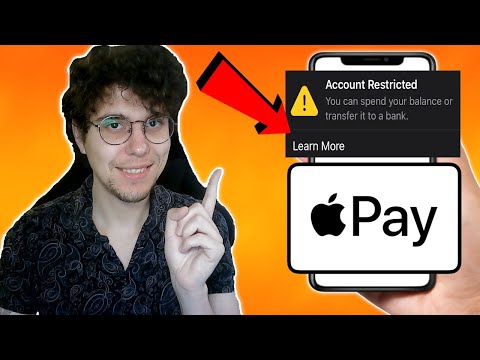
If your Apple Cash or Apple Pay services are restricted, it is often due to a failure in the Identity Verification process. To fix this via software settings:
- Open the Wallet app on your iPhone.
- Tap on your Apple Cash card.
- Tap the More button (three dots) and select Card Details.
- Look for the Verify Identity prompt. Follow the on-screen instructions to upload your government-issued ID.
Apple uses automated document recognition (ADR) software to match your ID with your account details. Ensure high-contrast lighting and clear margins to prevent the AI from rejecting the image.
4. Update Software and Clear System Cache

Outdated firmware can lead to synchronization errors with Apple’s security servers. Ensure your device is running the latest version of iOS or macOS. If the restriction persists after verification, try signing out and back into iCloud. This forces a fresh handshake between your local device and Apple’s centralized authentication database, clearing any "stuck" states in the local secure element (the hardware chip that stores encrypted payment data).
AI Implementation Score
The following table evaluates how AI and automation impact the recovery process for an Apple account lock:
| Metric | Score (1-10) | Description |
|---|---|---|
| Detection Speed | 9.5 | AI algorithms identify suspicious patterns in milliseconds. |
| Verification Efficiency | 8.0 | Automated 2FA and ADR systems streamline identity proofing. |
| False Positive Rate | 4.0 | High security often leads to legitimate users being flagged by mistake. |
| User Autonomy | 7.5 | Self-service portals allow recovery without human intervention. |
5. Contacting Apple’s Risk Management Team

If automated methods fail, the restriction may be "hard-coded" due to a complex billing dispute or high-level security breach. In this scenario, you must escalate to a human agent. Use the Apple Support app to schedule a call. Mention specifically that you have completed the "Identity Verification" steps in the Wallet app. This signals to the technician that the basic software-level triggers have already been addressed, moving your case to the specialist who manages manual account overrides.
