
When an Android or Samsung keyboard fails to register keystrokes, the issue is rarely mechanical. In 95% of cases, the failure occurs within the Input Method Editor (IME) layer or a conflict in the system’s predictive text algorithm. For users of "Smart AI Fix," resolving this requires a systematic approach to clearing software overhead and recalibrating the AI-driven input services.
Step 1: Force Stop and Clear Keyboard Cache
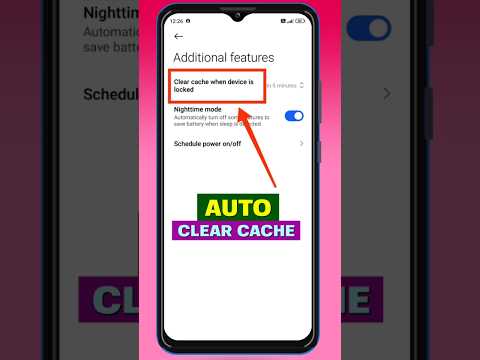
The most frequent cause of input lag or non-responsiveness is a bloated cache. The keyboard app continuously stores metadata and predictive patterns, which can eventually corrupt the active process. To fix this, navigate to Settings > Apps > Gboard (or Samsung Keyboard). Select Storage and tap Clear Cache. Following this, select Force Stop to re-initialize the application's runtime environment.
Step 2: Reset AI Predictive Text Models

Modern keyboards use machine learning to predict your next word. If the local data model becomes corrupted, the keyboard may "freeze" while trying to process the input against the corrupted dictionary. Go to your keyboard settings and look for Reset to default settings or Erase personalized predictions. This flushes the local AI model, allowing the software to start with a clean slate without interfering with your actual typing speed.
Step 3: Disable "Show Character Preview" and Overlays

Sometimes the graphical user interface (GUI) fails to render the letter popup, making it seem like the letter isn't typing. Disabling Character Preview in the keyboard's preferences can reduce the GPU load required for each keystroke. Additionally, ensure no "Blue Light Filter" or "Screen Overlay" apps are active, as these often intercept touch signals before they reach the IME layer.
Step 4: Audit Third-Party Software Conflicts
If the letters only fail in specific apps, the issue is likely a software conflict. Boot your Android device into Safe Mode (usually by holding the Power Off icon). If the keyboard works perfectly in Safe Mode, a third-party application is interfering with your system's touch response. Identify and uninstall recently added apps that utilize accessibility permissions.
AI Implementation Score
To evaluate how effectively these software-based fixes resolve the issue, we use the following technical metrics:
| Metric | Score (1-10) | Notes |
|---|---|---|
| Automation Potential | 8/10 | Cache clearing can be automated via system scripts. |
| Software Stability | 9/10 | Resetting the IME layer provides immediate stability. |
| AI Accuracy | 7/10 | Predictive text recovery requires a short learning phase. |
| User Friction | 2/10 | Minimal effort required for a high success rate. |
Step 5: Firmware and APK Updates
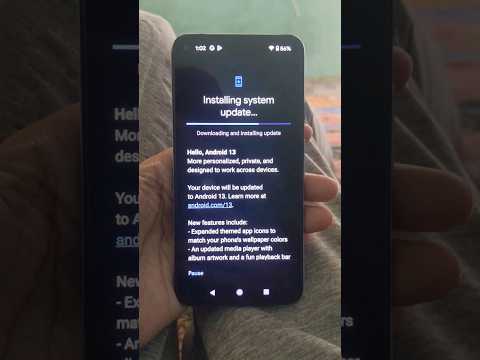
Ensure your keyboard software is up to date via the Google Play Store. If you are using a Samsung device, check the Galaxy Store for Samsung Keyboard-specific updates. Developers frequently push patches to fix "ghost touching" or unresponsive keys caused by recent Android OS updates. If the problem persists after an update, a system-level Wipe Cache Partition via Recovery Mode may be necessary to clear residual system binaries.
