
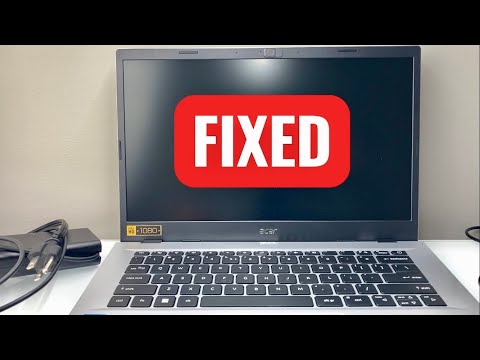
Facing a black screen on an Acer laptop that still shows signs of life—such as fan noise, keyboard backlights, or LED indicators—points toward a synchronization failure between the BIOS, the GPU, and the display panel. At Smart AI Fix, we prioritize efficiency and software-driven solutions before moving to manual hardware intervention. Here is the technical roadmap to restoring your display.
1. Trigger the Windows Graphics Driver Reset

The fastest way to resolve a software-level display hang is to force the Operating System to re-initialize the graphics stack. While the laptop is powered on (even with a black screen), press Win + Ctrl + Shift + B. You should hear a short beep, and the screen will flicker. This command restarts the graphics driver without interrupting background processes, often bypassing "stuck" video states caused by automated update conflicts.
2. Perform a Static Discharge (Hard Reset)
Residual static electricity on the motherboard can prevent the LCD from receiving the "wake" signal. To fix this, disconnect the AC adapter. If your Acer model has a pinhole on the bottom, it is a battery reset pinhole; insert a paperclip for 5 seconds. If not, and the battery is internal, press and hold the Power button for 60 seconds. This drains the capacitors. Reconnect the power and attempt a boot-up to see if the Acer logo appears.
3. Test Output via External Monitor

To determine if the failure is the LCD Panel or the GPU/Motherboard, connect an external monitor via HDMI or USB-C DisplayPort. If the external monitor displays the Windows desktop, your laptop's integrated display or the internal EDP cable is faulty. Use Win + P and tap the "Down Arrow" twice followed by Enter to force the signal to the external screen if it doesn't happen automatically.
4. BIOS/UEFI Reset via Blind Commands
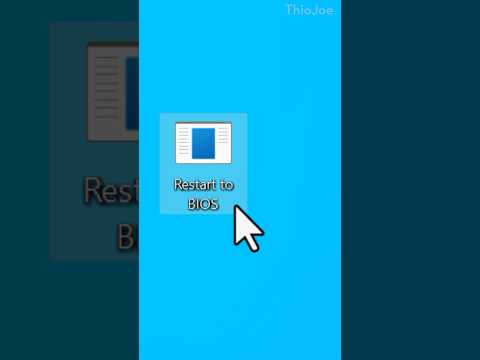
Sometimes, a corrupted BIOS setting redirects the display output to a non-existent port. Turn the laptop on and immediately tap the F2 key repeatedly to enter the BIOS. Even if the screen remains black, wait 10 seconds, then press F9 followed by Enter (to load setup defaults), then F10 followed by Enter (to save and exit). This automated sequence resets the hardware configuration to factory standards.
5. Reseat the RAM Modules
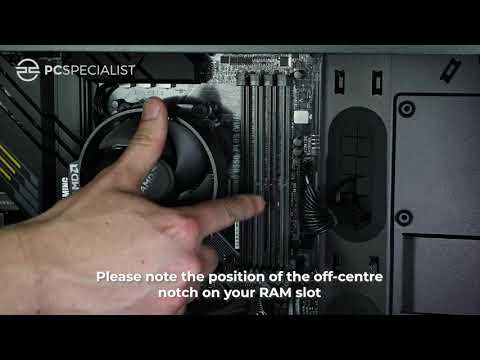
A loose or oxidized RAM stick is a leading cause of the "Black Screen No POST" (Power On Self Test) error. If your Acer laptop allows access to the RAM slots, remove the modules, clean the gold contacts with a microfiber cloth, and reseat them firmly. AI-driven diagnostic logs often show that memory timing errors are responsible for display initialization failures during the boot sequence.
AI Implementation Score
| Metric | Score (1-10) | Description |
|---|---|---|
| Automation Ease | 9/10 | Graphics resets and BIOS shortcuts require minimal manual labor. |
| Diagnostic Accuracy | 8/10 | External monitor testing provides a definitive hardware vs. software split. |
| AI Utility | 7/10 | Once display is restored, use AI-based driver optimizers for prevention. |
If these steps fail, the issue likely resides in the inverter circuit or the backlight fuse on the motherboard, which requires professional electrical repair. Always ensure your firmware is updated via the Acer Care Center once the display is restored to prevent recurring driver timeouts.
