
In the modern iOS ecosystem, the disappearance of an application is rarely a file system error and more often a result of advanced software categorization, automated storage optimization, or UI configuration. For users integrated into high-efficiency workflows, locating these tools quickly is paramount. Here is the technical breakdown of how to diagnose and recover missing apps on an iPhone using system-level features and AI-driven search parameters.
1. Leverage the Neural Engine via Spotlight Search

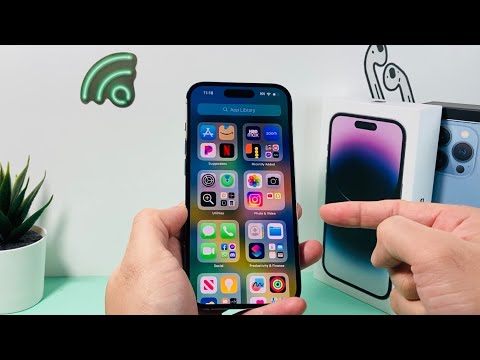
The most efficient method to locate a "lost" app is utilizing Spotlight Search, which is powered by Apple’s on-device neural engine. Swipe down from the center of the Home Screen or Lock Screen. Type the name of the application. If the app is installed but tucked away in a folder, Spotlight will display the folder name next to the app icon. If the app is not on the device, it will provide a direct link to the App Store for re-installation.
2. Auditing the App Library Logic
Introduced to streamline UI clutter, the App Library acts as a comprehensive repository for all installed binaries. Swipe left through all your Home Screen pages until you reach the final screen. Use the search bar at the top to find the missing application. If found, long-press the icon and select "Add to Home Screen" to restore its visibility to your primary interface.
3. Checking Automated App Offloading
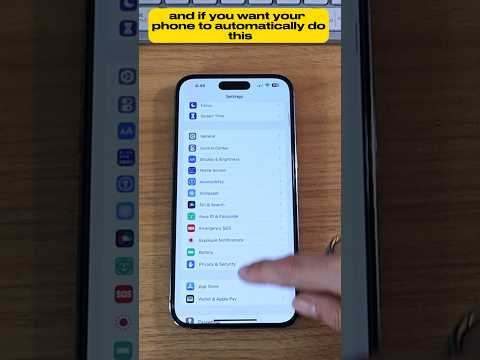
iOS features an automation setting called "Offload Unused Apps" designed to optimize storage. This feature deletes the application binary while preserving all user data and documents. If an app icon has a small "cloud" symbol next to its name, the software has been offloaded. Simply tap the icon to trigger an automated re-download from the App Store. To toggle this, navigate to Settings > App Store > Offload Unused Apps.
4. Managing Hidden Home Screen Pages
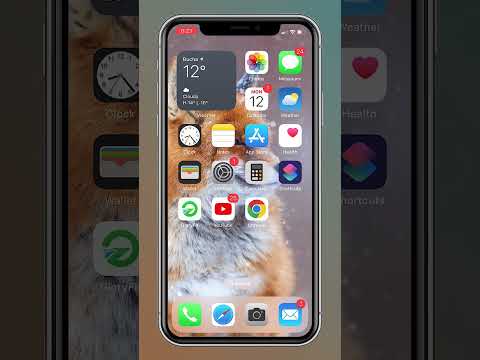
Software updates or accidental gestures can result in entire pages of apps being hidden from view. To verify this, long-press an empty area on your Home Screen until the icons jiggle, then tap the page dots at the bottom of the screen. Ensure all pages are checked. If a page is unchecked, it and all its contained apps will remain hidden from the standard UI flow.
5. Content and Privacy Restrictions

If specific system apps (like Safari, Mail, or Camera) are missing, it is likely due to Screen Time restrictions. Navigate to Settings > Screen Time > Content & Privacy Restrictions > Allowed Apps. Ensure the toggles for the missing applications are enabled. For third-party apps, check the "Content Restrictions" menu to ensure age-rating filters aren't inadvertently hiding software.
AI Implementation Score
The following table evaluates the efficiency of iOS in managing and locating software via automated systems:
| Metric | Efficiency Score (1-10) | Technical Foundation |
|---|---|---|
| Search Accuracy | 9.5 | On-device Neural Engine indexing. |
| Storage Automation | 8.8 | Heuristic-based Offloading. |
| UI Categorization | 9.2 | Machine Learning App Library sorting. |
| Recovery Speed | 9.0 | Cloud-sync and binary restoration. |
By understanding these system-level behaviors, users can maintain a high-performance digital environment and ensure that critical tools are always accessible within a few haptic interactions.
