
The iOS architecture is designed for streamlined minimalism, which often leads to users intentionally or unintentionally obscuring applications from their primary Home Screens. As mobile operating systems evolve to prioritize digital hygiene and AI-driven curation, locating these "invisible" assets requires a systematic approach to the underlying file system and metadata indexing.
1. Utilizing the App Library and Global Search
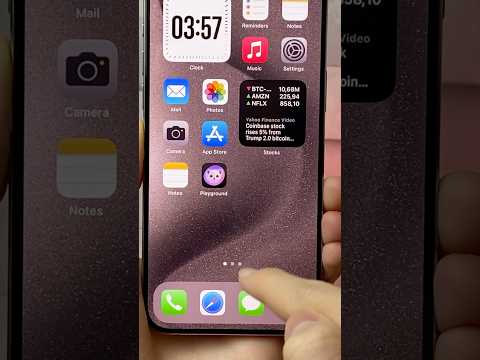
The first layer of hidden app retrieval resides in the App Library. Introduced to reduce visual clutter, this feature automatically categorizes every installed binary. To access it, swipe left past your final Home Screen. Use the search bar at the top to query the specific app name. If the app is installed but not visible on any page, it will appear here. To restore it, long-press the icon and select "Add to Home Screen."
Alternatively, leverage Spotlight Search by swiping down from the center of any Home Screen. This indexed search engine bypasses visual folders and layout restrictions to pinpoint the application's location immediately.
2. Checking Siri & Search Indexing Permissions
If an app does not appear in Spotlight, its metadata may have been excluded from the search index. Navigate to Settings > Siri & Search. Scroll down to the specific application in question. Ensure that the toggle for "Show App in Search" is enabled. In many cases, privacy-conscious users or automated system optimizations disable these toggles, effectively "hiding" the app from the global interface.
3. Auditing Hidden App Store Purchases

Sometimes an app is hidden because it was offloaded or deleted but remains part of your digital footprint. To find these:
- Open the App Store and tap your profile icon.
- Select Purchased (or My Purchases).
- Toggle to the "Not on this iPhone" tab.
4. Investigating Screen Time Restrictions
If an application is missing entirely—including from the App Library—it may be restricted by Screen Time. Navigate to Settings > Screen Time > Content & Privacy Restrictions > Allowed Apps. If certain core apps (like Mail, Safari, or Camera) are missing, they have likely been toggled off here. For third-party apps, check Content Restrictions > Apps to ensure the age rating isn't preventing the software from appearing on the device.
AI Implementation Score
At Smart AI Fix, we evaluate recovery methods based on technical efficiency and the involvement of automated system logic.
| Metric | Score (1-10) | Notes |
|---|---|---|
| Search Efficiency | 9/10 | Spotlight uses high-speed indexing for near-instant results. |
| Automation Potential | 7/10 | Siri Shortcuts can automate the launching of hidden apps. |
| System Depth | 8/10 | Requires navigating multiple layers of the iOS security stack. |
| User Accessibility | 10/10 | Most methods require zero third-party software. |
5. Using Siri for Direct Execution

The most efficient way to bypass UI-based hiding is through Voice Command Automation. Because Siri interacts directly with the application manifest, simply saying "Hey Siri, open [App Name]" will trigger the executable even if the icon is buried within a hidden folder or removed from the Home Screen entirely. This confirms the app's presence before you spend time manually searching through system settings.
