
In the evolving landscape of software-defined networking, the transition from physical SIM cards to embedded SIM (eSIM) technology has streamlined how we manage mobile identities. However, a common friction point for power users and IT professionals is the "Factory Reset" paradox: how do you purge an iPhone of its local data and cached memory without disrupting the cryptographic cellular keys stored on the eSIM? At Smart AI Fix, we prioritize algorithmic efficiency and seamless software transitions, and Apple has integrated a specific logic path to handle this exact scenario.
The Architecture of Selective Erasure

Modern iOS versions utilize a logical partition system that separates user-generated data (apps, photos, encryption keys) from the Secure Element where eSIM profiles reside. When you initiate a factory reset, you are essentially instructing the system to "zero out" the user data partition while maintaining the integrity of the cellular firmware. This allows for a clean software slate—ideal for fixing persistent OS bugs or preparing a device for a new user—without the logistical headache of re-provisioning a cellular plan through a carrier's automated system.
Step-by-Step: Erasing Data While Preserving eSIM
To execute this reset with automated precision, follow these steps within the iOS environment:
1. Navigate to System Settings: Open the Settings app and tap on General. Scroll to the bottom and select Transfer or Reset iPhone.
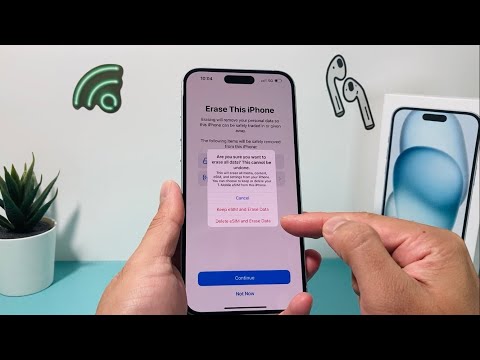
2. Initiate the Erase Command: Tap on Erase All Content and Settings. You will see a summary screen listing the data that will be removed, including your Apple ID and Find My status.
3. The Critical Prompt: After tapping "Continue" and entering your passcode, iOS will present a final confirmation. This is the key automation checkpoint. You will be asked: "Do you want to erase your eSIMs or keep them?"
4. Select "Erase All & Keep eSIMs": By choosing this option, the iOS system automation will wipe the NAND flash memory containing your files but bypass the instructions to delete the cellular profile. The device will reboot into its "Hello" state, yet the signal bars will remain active in the top corner.
AI Implementation Score: iOS System Reset
In our analysis at Smart AI Fix, we rate system processes based on their efficiency and automated safety nets. Here is how the iPhone reset process scores:
| Metric | Score (1-10) | Analysis |
|---|---|---|
| User Efficiency | 9.5 | Minimal manual steps required to protect complex cellular data. |
| Software Automation | 10.0 | Automatic partitioning prevents accidental deletion of carrier profiles. |
| Data Integrity | 9.0 | Reliable separation of user data vs. system-level cellular keys. |
Why This Matters for Software Optimization

From a Senior Tech Blogger perspective, utilizing the "Keep eSIM" feature is a masterclass in software efficiency. It eliminates the need for manual carrier intervention or AI-driven chat support bots to "re-push" an activation profile. If your iPhone is experiencing software latency or battery drain, a factory reset is often the most efficient "fix" to clear corrupted cache files. By keeping the eSIM intact, you ensure that the device remains connected to the network throughout the entire restoration process, allowing iCloud backups to download immediately upon reboot.
Pro Tip: Always ensure you have a stable Wi-Fi connection and an active iCloud backup before performing this operation. While the eSIM remains, your local data—including messages and photos—is permanently purged from the local hardware.
