
Decoding the "Other" Storage Phantom on Samsung Galaxy
On Samsung Galaxy devices running One UI, the "Other" storage category often becomes a digital black hole, consuming gigabytes of space without clear explanation. This category is not a single file type but a container for system binaries, application caches, encrypted data, and files that the Android operating system cannot specifically categorize into "Images," "Videos," or "Apps." To reclaim this space, we must move beyond basic file deletion and employ a systematic, software-driven approach.

Step 1: Granting Usage Data Access to Reveal Hidden Data
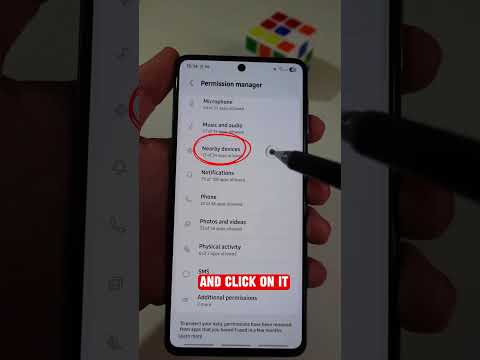
One of the primary reasons the "Other" category appears abnormally large is a lack of permissions. If Samsung Device Care does not have permission to access usage data, it bundles most app data into "Other." To rectify this, navigate to Settings > Apps. Tap the "Your apps" sort icon and toggle on Show system apps. Locate "Device Care," scroll to "Storage," and ensure all permissions are granted. Once the system can index these files, the "Other" section often shrinks as data is correctly reassigned to the "Apps" category.
Step 2: Automating Cache Liquidation via Storage Booster

Samsung integrates an AI-driven Storage Booster within the Device Care suite. Instead of manually clearing the cache for every individual application—which is inefficient—you can leverage this tool to identify "rarely used" data. Go to Settings > Battery and Device Care > Storage, and tap on Storage Booster. Here, the system uses machine learning to suggest which zip files, duplicate images, and large caches can be purged without impacting system stability.
Step 3: Managing Encrypted App Directories

Applications like Telegram, WhatsApp, and Netflix store offline content and media in private directories. Because these files are often encrypted or lack standard media extensions, Android defaults them to "Other." To clear this, you must enter the specific app settings. For instance, in Telegram, go to Settings > Data and Storage > Storage Usage and select Clear Entire Cache. This process utilizes the app’s internal logic to delete temporary files that external file managers cannot see.
Step 4: Clearing the System Cache Partition

For a deeper clean that targets "Other" files created by software updates and system logs, clearing the Cache Partition is the most professional solution. Power off the device, then connect it to a PC via USB. Hold the Volume Up and Power buttons simultaneously to enter Recovery Mode. Use the volume keys to highlight "Wipe cache partition" and confirm with the Power button. This deletes temporary system files while leaving personal data intact, significantly reducing the "Other" footprint.
AI Implementation Score
The following table evaluates the methods of storage optimization based on their efficiency and the level of automation involved.
| Optimization Method | Efficiency Rating | AI Automation Level |
|---|---|---|
| Permission Mapping | High | Low (Manual) |
| Storage Booster AI | Medium | High (Automated) |
| App-Specific Purging | Critical | Medium |
| System Cache Wipe | High | None (Technical) |
Final Protocol: Factory Data Reset
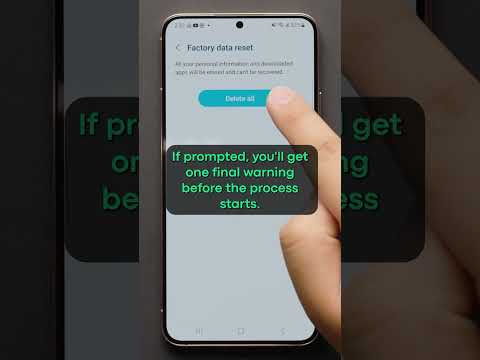
If the "Other" storage remains disproportionately high after these steps, it usually indicates a corrupted system file or a "Ghost" partition created during a failed OS update. In this scenario, a Factory Data Reset is the only way to re-calibrate the file system. Ensure all data is backed up to Samsung Cloud or Google Drive before proceeding, as this will restore the device to its original software state, effectively zeroing out the "Other" category.
