
Managing the visual interface of an iPhone has become increasingly complex since the introduction of the revamped Lock Screen system in iOS 16. While Apple provides extensive customization options, the accumulation of stale wallpaper pairs can lead to digital clutter and unnecessary memory overhead. At Smart AI Fix, we prioritize software efficiency and streamlined UI management. Here is the technical breakdown of how to purge your wallpaper gallery and optimize your device's aesthetic environment.
The Standard Deletion Protocol
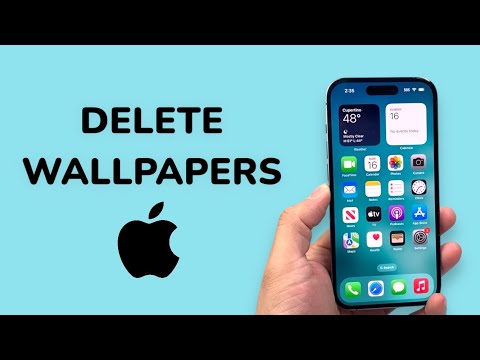
Currently, iOS does not offer a "Delete All" button within the wallpaper settings. This architectural choice is designed to prevent accidental data loss of curated Lock Screen/Home Screen pairs. To clear your gallery, you must utilize the Lock Screen Switcher. Follow these steps for maximum efficiency:
1. Wake your iPhone and unlock it using FaceID or TouchID, but do not swipe up to the Home Screen. Stay on the Lock Screen.
2. Perform a long-press (Haptic Touch) on any blurred area of your current wallpaper. This enters the edit mode.
3. Swipe horizontally to navigate through your saved wallpaper configurations.
4. On the wallpaper you wish to remove, swipe up. A red trash can icon will appear.
5. Tap the Delete icon and confirm the action. Repeat this process until only your desired "Clean" state remains.
Managing Wallpaper Automation and Focus Links

If you have automated your wallpapers using Focus Filters or Shortcuts, simply deleting the wallpaper from the gallery may leave orphaned configurations in your settings. To ensure a complete system flush, navigate to Settings > Focus. Review each Focus mode (e.g., Work, Sleep, Do Not Disturb) to ensure they are not still attempting to trigger a deleted wallpaper ID. This prevents software conflicts and ensures the Springboard process remains responsive.
AI Implementation Score
In our assessment of how "smart" or automatable this process is, we have rated the current iOS wallpaper management system based on efficiency and AI integration.
| Criteria | Score (1-10) | Technical Note |
|---|---|---|
| Manual Efficiency | 6/10 | Requires individual swipes; no bulk selection. |
| Automation Potential | 3/10 | iOS API restricts Shortcut-based deletion of wallpaper assets. |
| UI Logic | 9/10 | Gesture-based deletion is intuitive for single-unit management. |
| Resource Optimization | 8/10 | Deleting unused pairs reduces cached image data. |
Final System Optimization

After performing a bulk deletion of wallpapers, it is a Senior Tech Blogger best practice to perform a soft reset (Volume Up, Volume Down, then hold Power Button). This clears the temporary cache of the PosterBoard process, which is the internal system framework responsible for rendering these visual layers. By maintaining a lean wallpaper gallery, you ensure that the transition between Focus modes and device unlocking remains fluid and free of micro-stuttering.
