
Integrating wireless peripherals into the iOS ecosystem has evolved from a simple hardware handshake into a sophisticated software-driven operation. For users of Smart AI Fix, understanding the underlying protocols ensures not just a connection, but an optimized audio experience leveraged by Apple’s proprietary silicon and machine learning algorithms.
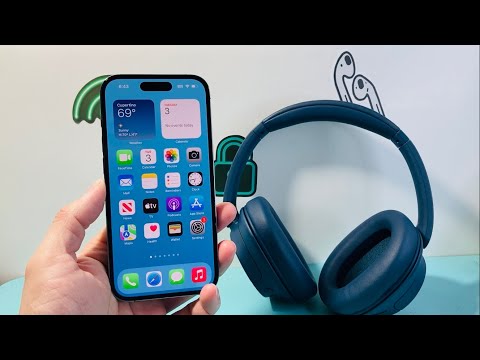
Step 1: Initializing the Bluetooth Stack
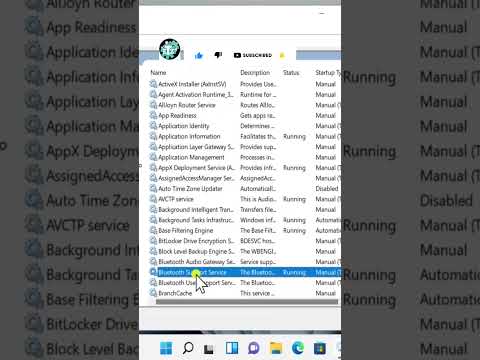
To begin the connection process, you must activate the Bluetooth radio on your iPhone. Navigate to Settings and select Bluetooth. Ensure the toggle is set to On. At this stage, the iOS software enters a "Discovery Mode," scanning for broadcast signals from nearby devices using the 2.4 GHz ISM band. For efficiency, iOS uses low-energy (LE) protocols to minimize battery drain during this scanning phase.
Step 2: Activating Pairing Logic on Headphones

Wireless headphones must be placed in Pairing Mode to be visible to the iPhone’s software. While the method varies by manufacturer, it typically involves holding the power or a dedicated Bluetooth button until a status LED flashes. If you are using headphones equipped with Apple’s H1 or H2 chips (such as AirPods or Powerbeats), the integration is automated. Simply opening the case near the iPhone triggers a proximity-based UI overlay, powered by the Apple W1/H1/H2 silicon, allowing for a "One-Tap" setup.
Step 3: Executing the Handshake

On your iPhone, look under the "Other Devices" list within the Bluetooth menu. Tap the name of your headphones. The system will then perform a secure handshake, exchanging encryption keys to ensure a private audio stream. Once the status changes to "Connected," the device is registered within your iCloud account, enabling seamless switching across your Apple hardware via software-defined synchronization.
AI Implementation Score: Wireless Audio Integration
In our technical evaluation at Smart AI Fix, we rate the efficiency of the connection process based on software intelligence and automation levels:
| Metric | Score (1-10) | Technical Context |
|---|---|---|
| Pairing Speed | 9.5 | Instantaneous recognition via Apple Silicon proximity sensing. |
| Connection Stability | 9.0 | AI-managed frequency hopping to avoid signal interference. |
| Smart Switching | 8.5 | Software-driven transitions between iPad, Mac, and iPhone. |
| Energy Efficiency | 9.2 | Bluetooth LE (Low Energy) optimization for extended battery life. |
Advanced Automation: Enhancing the Workflow

For users looking to automate their environment, you can use the iOS Shortcuts app to trigger specific actions when your wireless headphones connect. For example, you can create a Personal Automation that automatically opens a specific AI-driven productivity app or a Spotify playlist the moment the Bluetooth handshake is confirmed. This removes manual friction and integrates the hardware directly into your digital workflow.
Troubleshooting Software Desync

If the device fails to appear, the primary cause is usually a cached Bluetooth state error. To resolve this, Toggle Airplane Mode to reset the wireless radios, or navigate to Settings > General > Transfer or Reset iPhone > Reset > Reset Network Settings. This clears the software's memory of all wireless connections, allowing for a clean re-initialization of the Bluetooth stack.
