
Merging video clips on Android has evolved from a tedious manual task into a streamlined process, largely driven by on-device AI processing and integrated software suites. Whether you are using a flagship Samsung device or a standard Android build, the efficiency of stitching media depends on leveraging the right automation tools.
Method 1: Samsung Studio (Native AI Integration)

Samsung Galaxy users possess a powerful built-in tool formerly known as "Video Editor," now integrated into Samsung Studio. This application uses hardware acceleration to ensure seamless transitions between clips of varying resolutions.
To combine videos on a Samsung device: Open the Gallery app, select the videos you wish to merge by long-pressing them, and tap Create followed by Movie or Studio. The interface allows you to snap clips together, apply AI-suggested background music, and match the frame rates automatically to prevent stuttering.
Method 2: Google Photos "High-Light" Automation
For a more automated, AI-driven approach, Google Photos offers a "Movie" feature that utilizes machine learning to identify the best segments of your clips. This is ideal for users who want to combine videos without manual trimming.
Open Google Photos, navigate to Library > Utilities > Movie. Select "New movie" and choose your clips. Google’s algorithms will analyze the visual data, stabilize shaky footage, and merge the files into a cohesive narrative. This method is highly efficient for cloud-based workflows as the heavy lifting is done on Google’s servers.
Method 3: CapCut and AI Auto-Cut Features
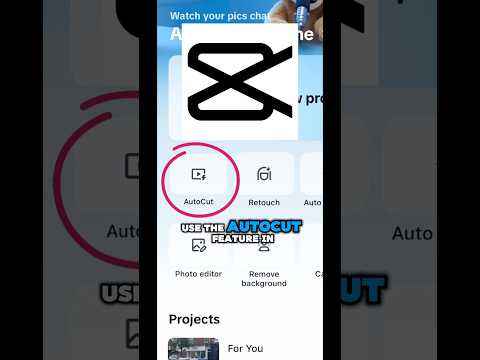
If you require professional-grade automation, CapCut (developed by ByteDance) is the industry standard for mobile video synthesis. Its AutoCut feature uses computer vision to sync video transitions to the beat of a soundtrack automatically.
By importing multiple clips into CapCut, you can use the "ShortCut" or "AutoCut" function. The AI analyzes the content of the videos—recognizing faces, landscapes, and action sequences—and stitches them together with intelligent transitions that require zero manual adjustment.
AI Implementation Score
The following table evaluates the efficiency and intelligence of each merging method based on Smart AI Fix benchmarks:
| Method | AI Automation Level | Efficiency Rating | Best For |
|---|---|---|---|
| Samsung Studio | 6/10 | High | Native Samsung users |
| Google Photos | 8/10 | Medium | Automated highlights |
| CapCut (AutoCut) | 9.5/10 | Extreme | Social Media & Pro-sumers |
Technical Optimization Tips

When combining videos, always ensure that the Output Resolution matches the highest-quality source clip (usually 4K or 1080p). To maintain software efficiency, clear your device cache before exporting long projects, as video rendering is a RAM-intensive process. Using HEVC (H.265) encoding is recommended to maintain high visual fidelity while reducing the final file size by up to 50%.
