
Managing network security directly from your mobile device is a cornerstone of modern digital efficiency. While many users assume that changing a router's credentials requires a desktop workstation, the iOS ecosystem provides a streamlined path to audit and update your network security protocols via Safari and System Settings.
Step 1: Identifying the Router Gateway via iOS
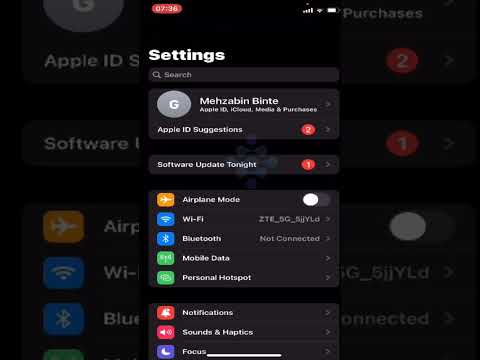
Before you can change the Wi-Fi password, you must access the router’s administrative interface. Your iPhone identifies the Router IP Address automatically. Navigate to Settings > Wi-Fi and tap the "i" (Information) icon next to your connected network. Scroll down to find the "Router" entry (typically 192.168.1.1 or 192.168.0.1). Long-press the IP address to copy it to your clipboard.
Step 2: Accessing the Admin Console via Safari
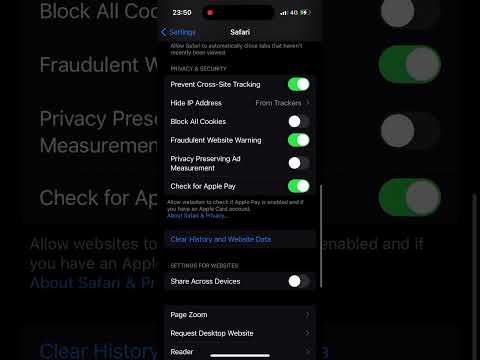
Open Safari and paste the IP address into the address bar. This initiates a local connection to your router's firmware. You will be prompted for an administrative username and password. If these have never been changed, they are often found on a physical sticker on the router hardware. For maximum security optimization, we recommend using a strong, AI-generated password for this administrative login as well as the Wi-Fi SSID itself.
Step 3: Modifying Wireless Security Protocols

Once inside the dashboard, locate the "Wireless," "WLAN," or "Security" tab. Here, you can modify the WPA3 or WPA2-PSK settings. Input your new password. Once you hit "Save" or "Apply," the router will restart, and your iPhone will be disconnected from the current session.
Step 4: Updating Stored Credentials on iPhone
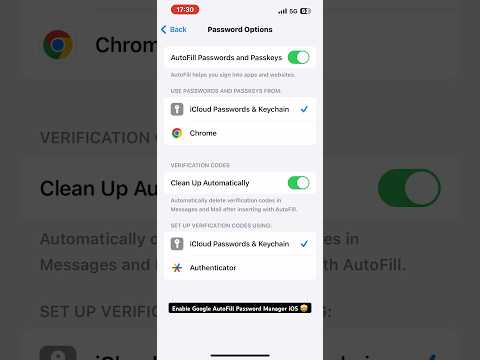
With the router updated, your iPhone will now fail to connect using the cached credentials. To fix this, navigate to Settings > Wi-Fi. Tap Edit in the top-right corner (this requires FaceID/TouchID authentication). Find your network, tap the Information icon, and select "Forget This Network." Alternatively, in newer iOS versions, you can tap the Password field within the network settings to view and edit the stored key directly.
AI Implementation Score
This table evaluates the efficiency and security impact of managing Wi-Fi credentials via iPhone software.
| Metric | Score | Technical Rationale |
|---|---|---|
| Security Enhancement | 9.5/10 | Regularly rotating keys prevents brute-force exploits. |
| Automation Potential | 5/10 | Mostly manual; however, iCloud Keychain automates sync across devices. |
| Ease of Execution | 8/10 | High accessibility via mobile browser and iOS Settings. |
By leveraging the iCloud Keychain, once you update the password on your iPhone, the change is synchronized across your MacBook, iPad, and Apple Watch. This software-driven automation eliminates the need to manually re-enter credentials on every device within your hardware stack.
