
Managing multiple Apple IDs is often a necessity for power users, developers, and AI researchers who need to test software across different regional App Stores or isolate personal data from high-level automation workflows. While Apple designs the iPhone to be a single-user device, switching your iCloud account is a straightforward process provided you manage your local data caches correctly to avoid synchronization conflicts.
Pre-Migration Checklist: Ensuring Data Integrity
Before initiating a switch, it is critical to understand that your Apple ID is the backbone of your device's identity. Switching accounts affects iCloud Photos, Keychain, Find My, and your App Store purchases. We recommend performing a full iCloud Backup or a local encrypted backup via a workstation to ensure that local metadata—often used by on-device AI for predictive text and photo recognition—is preserved.
Step-by-Step: How to Switch Apple ID on iPhone

To change the primary account on your device, follow this sequence to ensure a clean transition without losing vital local files:
1. Access Account Settings: Open the Settings app and tap on your Apple ID Name at the very top of the interface.
2. Sign Out: Scroll to the bottom and tap Sign Out. You will be prompted to enter your Apple ID password to disable Find My iPhone and Activation Lock.
3. Data Retention Selection: This is the most crucial step for software efficiency. The iPhone will ask which data you want to "Keep a copy of on this iPhone." Check the boxes for Contacts, Keychain, and Safari if you intend to merge this data with the new account. If you are setting up a clean slate for a different AI environment, leave them unchecked.
4. Confirm Sign Out: Tap Sign Out again to confirm. The device will take a few moments to remove iCloud data and local caches.
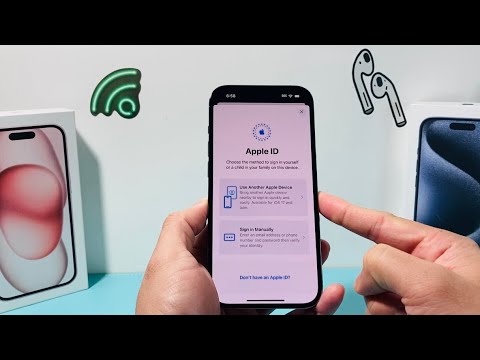
5. Sign In with New ID: Return to the main Settings menu and tap Sign in to your iPhone. Enter the new Apple ID credentials. You may be asked if you want to merge the local data currently on the device with the new iCloud account.
AI Implementation Score
At Smart AI Fix, we evaluate system changes based on how they impact the efficiency of the user experience and the underlying machine learning models that power the OS. Switching Apple IDs has a significant impact on your "Siri & Search" personalization and App Store recommendation algorithms.
| Metric | Score (1-10) | Technical Note |
|---|---|---|
| Process Efficiency | 9/10 | Rapid execution with minimal downtime. |
| Data Migration Integrity | 7/10 | Risk of duplicate contacts or lost app-specific metadata. |
| AI Personalization Reset | 5/10 | Neural Engine starts re-learning user patterns from scratch. |
| Automation Capability | 8/10 | Shortcuts and HomeKit profiles require manual re-linking. |
Managing Multiple IDs for App Store Efficiency

If your primary goal is to download apps from a different region without changing your entire iCloud ecosystem (i.e., keeping your Photos and Keychain intact), you can switch the Media & Purchases account independently. To do this, go to Settings > [Your Name] > Media & Purchases > Sign Out, then sign back in with the secondary ID. This allows for a hybrid environment where your iCloud remains personal while your software distribution is handled by a separate developer or regional account.
Note: Frequent switching between IDs for Media & Purchases may trigger a 90-day device association lock on certain automated subscription services. Use this method strategically to maintain peak software performance.
