
Securing a Samsung smartphone in the age of sophisticated digital threats requires more than just a strong passcode. One of the most overlooked vulnerabilities in Samsung’s One UI is the accessibility of the Quick Settings menu while the device is locked. By default, anyone can swipe down to toggle Airplane Mode, Wi-Fi, or Mobile Data, effectively neutralizing AI-driven tracking features like "Find My Mobile."
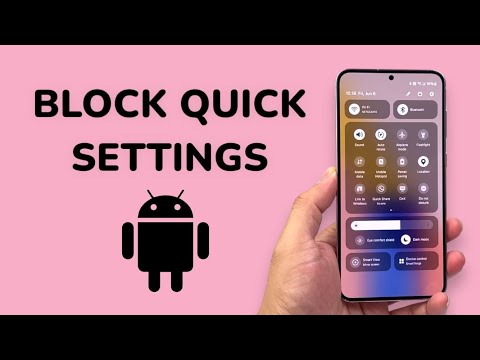
The Security Logic Behind Locking Quick Settings

From a software architectural standpoint, allowing network modifications without authentication creates a "blackout" window for recovery services. If an unauthorized user disables the internet connection, the device's cloud-based security protocols and AI-assisted location services become useless. To prevent this, we must leverage Secure Lock Settings to ensure that any attempt to modify connectivity requires a biometric or PIN verification.
Step-by-Step Implementation

Follow these steps to harden your Samsung device’s lock screen security and ensure your network settings remain under your control:
1. Open the Settings app on your Samsung device.
2. Scroll down and select Lock screen.
3. Tap on Secure lock settings. (You will be prompted to enter your current PIN, Pattern, or Password).
4. Locate the toggle for Lock network and security.
5. Switch this toggle to ON.
Once enabled, the system’s security logic will prevent anyone from turning off Wi-Fi, Mobile Data, or Bluetooth without first unlocking the phone. Note that while the menu can still be pulled down to view notifications or use the flashlight (depending on your specific One UI version), the critical connectivity toggles will be frozen behind the authentication layer.
AI Implementation Score
At Smart AI Fix, we evaluate software modifications based on their efficiency in protecting the device's automated ecosystem. Here is the score for this security configuration:
| Category | Score (1-10) | Description |
|---|---|---|
| Security Automation | 9/10 | Ensures background AI tracking services remain uninterrupted. |
| Software Friction | 2/10 | Minimal impact on daily user experience; only triggers during reboots/toggles. |
| Efficiency Gain | 8/10 | Prevents manual "offline" bypass by unauthorized users. |
| Logic Integration | 10/10 | Perfectly aligns with Samsung’s Knox security architecture. |
Final Optimization Tip

For maximum efficiency, combine this setting with Auto-factory reset (found in the same menu). This ensures that after 15 failed attempts to unlock the device, the AI-governed security layer wipes all data, preventing local access to your sensitive information. By refining these software parameters, you transform your Samsung device from a simple smartphone into a fortified data hub.
