
Mastering Communication Filters: Blocking Numbers on iOS

In an era of hyper-connectivity, managing your digital perimeter is essential for productivity and security. Apple’s iOS provides a robust software framework to intercept and neutralize unwanted communication. From a technical standpoint, blocking a contact on an iPhone does more than just "silence" a ring; it instructs the operating system to reject the handshake from specific cellular or data-based identifiers (VoIP and PSTN).
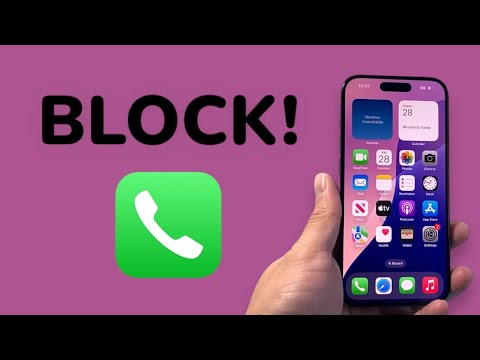
Method 1: Direct Interception via the Phone Application

The most efficient way to block a number that has recently contacted you is through the Phone app’s native log. This method is ideal for stopping telemarketers or automated spam bots before they become a recurring issue.
1. Open the Phone app and navigate to the Recents tab.
2. Identify the specific entry you wish to restrict.
3. Tap the "i" (Information) icon located to the right of the number.
4. Scroll to the bottom of the contact card and select Block this Caller.
5. Confirm the action by selecting Block Contact.
Method 2: Filtering via the Messages App

SMS-based phishing (smishing) requires a different tactical approach. When you block a contact within Messages, you are effectively blacklisting that sender across the entire iMessage and SMS protocol for that device.
1. Open the Messages thread from the sender you want to block.
2. Tap the profile icon (or name/number) at the top of the screen.
3. Select the Info button.
4. Tap Block this Caller at the bottom of the interface.
Method 3: Automation via 'Silence Unknown Callers'
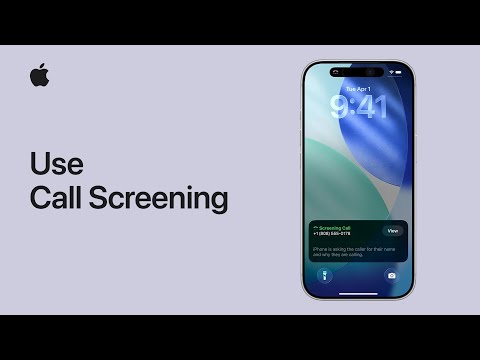
For users seeking a more AI-driven, automated approach to communication management, iOS offers a heuristic filter called "Silence Unknown Callers." This feature uses on-device intelligence to cross-reference incoming calls with your Contacts, Mail, and Messages. If a number is not found in your existing data ecosystem, the software automatically diverts the call to voicemail without interrupting your workflow.
To enable this automation, navigate to Settings > Phone > Silence Unknown Callers and toggle the switch to On.
AI Implementation Score: Communication Control
The following table evaluates the efficiency and technical depth of iOS blocking mechanisms from a 'Smart AI Fix' perspective.
| Metric | Score (1-10) | Technical Rationale |
|---|---|---|
| Software Integration | 10 | Blocking is applied at the OS level across Phone, FaceTime, and Messages. |
| Automation Level | 8 | 'Silence Unknown' acts as a smart gateway, though it requires manual initial setup. |
| AI Efficiency | 7 | iOS utilizes Siri Intelligence to suggest names for unknown callers via email signatures. |
| User Friction | 9 | The UI path to block a contact is streamlined to under three taps. |
Managing Your Blocked List

To audit or remove restrictions, you can access your centralized database of blocked entities. Navigate to Settings > Phone > Blocked Contacts. Here, you can Edit the list to unblock numbers or manually add new entries from your contact list to the restricted registry, ensuring your communication environment remains optimized and secure.
