
Apple CarPlay acts as a high-efficiency interface, bridging the gap between mobile software and automotive hardware. For power users and automation enthusiasts at Smart AI Fix, optimizing the CarPlay dashboard is not just about aesthetics—it is about reducing cognitive load and maximizing the utility of AI-driven navigation and communication tools.
AI Implementation Score
Before diving into the configuration, let’s evaluate the automation and intelligence efficiency of the CarPlay ecosystem.
| Metric | Score (1-10) | Rationale |
|---|---|---|
| User Interface Automation | 9/10 | The dynamic "CarPlay Dashboard" uses machine learning to suggest destinations and music. |
| Software Integration | 8/10 | Seamless synchronization between iOS and vehicle head units via high-speed data protocols. |
| AI Voice Control (Siri) | 8.5/10 | Natural Language Processing (NLP) allows for hands-free app management and messaging. |
How to Add and Organize Apps on CarPlay
To add apps to CarPlay, you must understand that the system does not "install" apps directly onto the car. Instead, it mirrors CarPlay-compatible software already residing on your iPhone. If an app is compatible (such as Spotify, WhatsApp, or Google Maps), it will appear in the customization menu automatically.
Follow these steps to manage your application stack:
1. Access iOS Settings: Unlock your iPhone and navigate to Settings. This is the central hub for all software-to-hardware handshakes.
2. General Configuration: Tap on General and then select CarPlay. Ensure your Bluetooth is active or your device is connected via a certified Lightning or USB-C cable.
3. Select Your Vehicle: Under the "My Cars" section, select the specific vehicle profile you wish to modify. CarPlay allows for unique configurations for different vehicles.
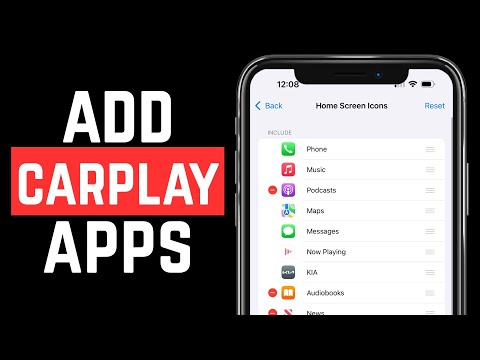
4. Enter Customize Mode: Tap on Customize. This screen displays a list of all currently active apps and a "More Apps" section at the bottom.
5. Add and Remove Apps: To add an app, tap the green plus (+) icon next to any application in the "More Apps" list. To remove an app from the CarPlay display, tap the red minus (-) icon. Note that core system apps like Phone and Messages cannot be removed, as they are integral to the safety and functionality of the software.
6. Optimize App Order: For maximum efficiency, use the three-bar "hamburger" icon on the right to drag apps into your preferred order. We recommend placing your primary AI navigation (Google Maps/Waze) and communication tools in the top four slots for instant access.
Leveraging AI for Automatic App Suggestions

One of the most powerful features within the modern CarPlay environment is the Siri Suggestions functionality. By analyzing your routines and location data, the iPhone's onboard AI can predict which app you need before you manually select it. To ensure this is active, go to Settings > Siri & Search and ensure "Suggestions while Driving" is toggled on.
This automation layer ensures that your most-used apps—whether for smart home control or enterprise communication—are always at the forefront of your digital driving experience.
