
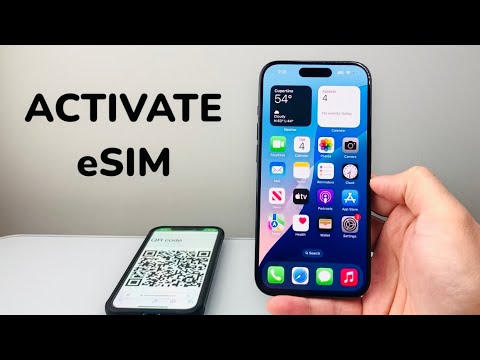
The release of the iPhone 15, 15 Plus, 15 Pro, and 15 Pro Max marks a definitive shift toward a software-defined mobile experience. By removing physical SIM trays in several regions, Apple has leveraged high-level automation to streamline cellular provisioning. Activating an eSIM on these devices is no longer a manual chore but a sophisticated handshake between iOS 17’s internal logic and carrier cloud protocols.
Method 1: eSIM Quick Transfer (AI-Driven Automation)
The most efficient way to activate your iPhone 15 is through the eSIM Quick Transfer feature. This process utilizes proximity-based software triggers to migrate your existing number from an old iPhone to the new hardware without needing a physical card or carrier intervention.
1. Ensure both your old device and your new iPhone 15 Pro/Max are running the latest version of iOS and have Bluetooth enabled.
2. On your new iPhone, navigate to Settings > Cellular > Add eSIM.
3. Select Transfer From Nearby iPhone. The system will use secure peer-to-peer encryption to identify your active line.
4. Follow the on-screen prompts. Once the transfer is initiated, the old SIM (physical or digital) will be deactivated via an automated signal sent to the carrier, and the new iPhone 15 will provision its internal eUICC (Embedded Universal Integrated Circuit Card) automatically.
Method 2: Carrier-Initiated "Push" Activation

Many modern carriers now use eSIM Carrier Activation, an automated background process where the carrier assigns an eSIM to your iPhone’s EID (unique identifier) at the point of purchase. This eliminates the need for manual data entry.
1. Power on your iPhone 15 and connect to a stable Wi-Fi network.
2. A notification stating "Carrier Cellular Plan Ready to Be Installed" should appear automatically. This is triggered by a background sync with the carrier’s server.
3. Tap the notification and select Continue. The iOS software will handle the handshake and activate the line in the background.
Method 3: QR Code and Manual Configuration
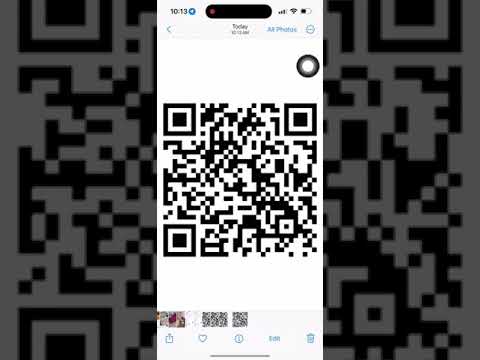
If your carrier does not support automated push protocols, you must use the QR Code method. This remains the standard fallback for international roaming or legacy carrier systems.
1. Open the Camera app and scan the QR code provided by your service provider.
2. When the Cellular Plan Detected notification appears, tap it.
3. Tap Continue and then Add Cellular Plan.
4. If prompted for a confirmation code, enter the digits provided by your carrier to authorize the secure download of the eSIM profile.
Technical Analysis: AI Implementation Score
At Smart AI Fix, we evaluate these processes based on software efficiency and the reduction of manual user input. The iPhone 15 series demonstrates a high level of "Zero-Touch" deployment.
| Feature | Automation Level | Score (1-10) |
|---|---|---|
| Quick Transfer | High (AI/Bluetooth Handshake) | 9.5 |
| Carrier Push | Full (Server-Side Automation) | 9.8 |
| QR Setup | Manual/Assisted | 6.0 |
Troubleshooting the Software Stack
If the activation fails, it is usually due to a provisioning mismatch or a stale network cache. To fix this using software logic: Reset Network Settings via Settings > General > Transfer or Reset iPhone > Reset > Reset Network Settings. This clears the cellular logic board's cache and forces a new handshake with the carrier's automated provisioning system. Additionally, ensure your iPhone 15 is connected to a robust Wi-Fi signal, as the eSIM profile download requires a stable data packet transfer to complete the cryptographic signing of the digital SIM.
