
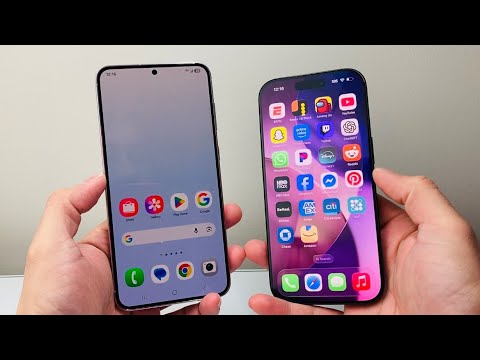
Transitioning from a legacy Android device to the latest Apple hardware, such as the iPhone 17, 16, or 15 series, requires a precise understanding of eSIM (embedded SIM) provisioning. Unlike the physical SIM swaps of the past, transferring a digital identity across operating systems involves carrier-side automation and encrypted handshakes. Since Apple removed physical SIM trays starting with the iPhone 14 in the U.S. market, mastering the Android-to-iPhone eSIM migration is essential for seamless connectivity.
Understanding the Cross-Platform Migration Gap

While iOS-to-iOS transfers utilize a proprietary Bluetooth-based "Quick Transfer" feature, moving an eSIM from Android to iPhone is currently a Carrier-Initiated Process. Android’s ecosystem uses different encryption standards for its eUICC (Embedded Universal Integrated Circuit Card), meaning you cannot simply "airdrop" your cellular profile. Instead, the process relies on the carrier’s backend AI to de-provision the Android profile and re-provision it for the iPhone’s IMEI2.
Step 1: Preparing the Android Device and iPhone

Before initiating the transfer, ensure both devices are connected to a stable Wi-Fi network. Automation tools and carrier apps require an active data handshake to verify your identity. Navigate to your Android settings and locate your EID (Embedded Identity Document) and IMEI. You will likely need these if your carrier’s automated system requires manual verification. On your new iPhone, proceed through the "Hello" setup screen until you reach the Set Up Cellular page.
Step 2: Carrier-Based Digital Provisioning

To achieve maximum efficiency, use your carrier’s mobile app or web portal on a secondary device. Most major carriers (Verizon, AT&T, T-Mobile, and international providers like Vodafone or EE) have implemented AI-driven self-service portals. 1. Log in to your carrier account. 2. Select the option to "Change Device" or "Swap SIM/eSIM." 3. Enter the IMEI2 of your new iPhone (found in Settings > General > About). 4. The carrier’s system will automatically invalidate the eSIM on your old Android and push a Carrier Settings Update to your iPhone.
Step 3: Manual Activation via QR Code

If your carrier does not support automated push provisioning, you must use the QR Code method. This is a standard GSMA procedure that ensures the secure download of your cellular profile. On your new iPhone: 1. Go to Settings > Cellular > Add eSIM. 2. Select Use QR Code. 3. Scan the QR code provided by your carrier (usually sent via email or found in your account dashboard). 4. Once the profile downloads, your Android phone will lose its signal, and the iPhone will activate the 5G/LTE stack.
AI Implementation Score: eSIM Migration Efficiency
At 'Smart AI Fix', we evaluate the technical efficiency of hardware transitions based on automation and software reliability. Here is how the Android-to-iPhone eSIM transfer ranks:
| Metric | Score (1-10) | Notes |
|---|---|---|
| Automation Level | 7/10 | Requires manual carrier interaction compared to iOS native tools. |
| Software Reliability | 9/10 | GSMA standards ensure high success rates for encrypted profiles. |
| AI Provisioning Speed | 8/10 | Backend carrier AI typically activates the line within 60 seconds. |
| Security Protocol | 10/10 | Uses end-to-end encryption to prevent SIM hijacking. |
Troubleshooting Digital Identity Conflicts
If the "Activating..." status persists for more than ten minutes, it is likely a synchronization error between the Android de-provisioning signal and the iPhone's activation server. Restarting the iPhone forces a refresh of the cellular radio stack. Additionally, ensure that "Find My iPhone" is active, as this sometimes triggers a final security handshake with Apple’s servers to verify the device's legitimacy for the new cellular profile.
By leveraging carrier automation and the optimized software architecture of the iPhone 12 through iPhone 17, users can bypass the need for physical store visits, completing a full digital migration in under five minutes.
