
The flashing or blinking Apple logo on an Apple Watch is a classic symptom of a "boot loop," a state where the device's kernel fails to initialize the watchOS environment successfully. From the perspective of a Senior Tech Architect, this usually indicates a disruption in the handshake between the Power Management Unit (PMU) and the system-on-a-chip (SoC). When your watch stays stuck in this cycle while charging, it is often failing to reach the minimum voltage threshold required to sustain the boot sequence.
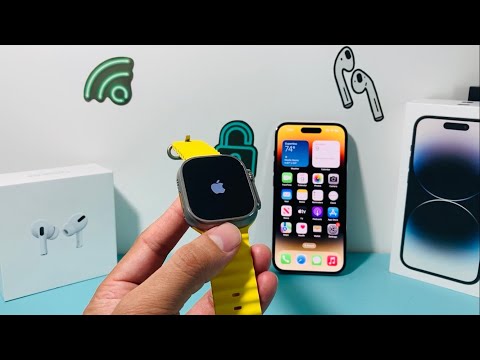
Diagnostic: Why the Apple Watch Blinks
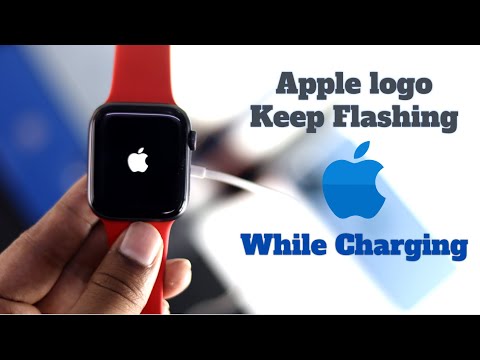
There are two primary catalysts for this behavior. First, deep battery depletion: if the lithium-ion cell drops below a certain millivolt floor, the watch attempts to boot, consumes its immediate power reserve, and crashes—resulting in the "blink." Second, software corruption: an interrupted update or a fragmented cache file can prevent the OS from loading, forcing the hardware to retry the boot indefinitely. To resolve this, we must apply a sequence of manual overrides and software recalibrations.
Solution 1: The Forced Hardware Reset

The most immediate fix to break the loop is a hardware-level interrupt. This forces the bootloader to ignore the previous state and attempt a fresh initialization. To perform this, press and hold both the Digital Crown and the Side Button simultaneously for at least 10 to 15 seconds. Do not release the buttons until the Apple logo disappears and reappears. This "hard reset" clears the temporary RAM cache that might be holding a corrupted instruction set.
Solution 2: Voltage Stabilization and Induction Loop

If the flashing persists while on the charger, the device may be caught in a "Low Power Boot Loop." In this scenario, the AI-managed charging logic is struggling to stabilize the current. Remove the watch from the charger for 30 minutes to let the internal temperature normalize. Afterward, reconnect it to an official Apple 20W USB-C Power Adapter rather than a laptop port. Efficiency-wise, a direct wall outlet provides the consistent amperage needed to bypass the flashing logo stage and enter the "Power Reserve" charging UI.
Solution 3: iPhone-Based Software Restoration
Modern watchOS versions (specifically watchOS 8.5 and later) allow for an iPhone-driven recovery. If your Apple Watch is blinking, bring your paired iPhone close to it. If the watchOS triggers a recovery prompt on the iPhone, double-click the Side Button on the watch and follow the on-screen instructions. This uses the iPhone’s processing power to "push" a clean firmware image to the Watch via Bluetooth/Wi-Fi, effectively automating the repair of the corrupted system partition.
AI Implementation Score
The following table evaluates the efficiency of these troubleshooting steps through the lens of automated recovery and software reliability.
| Metric | Implementation Score (1-10) | Technical Analysis |
|---|---|---|
| Troubleshooting Speed | 9/10 | Manual resets provide immediate hardware feedback. |
| Software Recovery AI | 8/10 | Apple’s proximity-based restoration is highly efficient. |
| Energy Management | 7/10 | Requires external stabilization for depleted cells. |
Final Step: Disabling Screen Curtain

In rare instances, the "blinking" is actually a bug related to Accessibility settings. If the watch vibrates but the screen remains dark or flashes, use the Watch App on your iPhone. Navigate to Accessibility > VoiceOver and ensure Screen Curtain is toggled OFF. This software-level override often fixes "ghost" display issues that mimic a boot loop.
