
iOS 18 Update Failures: Technical Root Causes and AI-Driven Solutions
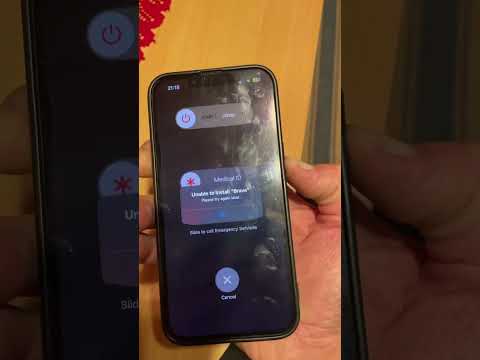
The rollout of iOS 18 represents a significant leap in mobile architecture, primarily due to the integration of Apple Intelligence and enhanced neural engine utilization. However, many users are encountering update failures, characterized by "Unable to Verify Update" or "An error occurred installing iOS 18." These bottlenecks are often caused by server-side congestion, local storage fragmentation, or corrupted software binaries. Resolving these issues requires a systematic approach to system recovery and optimization.
Step 1: Validate Hardware Architecture and AI Compatibility

Before attempting a manual override, ensure your hardware supports the neural processing demands of the new OS. While iOS 18 supports older models, the Apple Intelligence features are restricted to the iPhone 15 Pro and later. If your device is compatible but the update is stuck, the handshake between your device and the Apple SUS (Software Update Server) has likely failed. A common fix is to toggle Airplane Mode to reset the network stack and clear the DNS cache, ensuring a clean path for the delta update file.
Step 2: Automated Storage Optimization

iOS 18 requires approximately 10GB to 15GB of free space for the download and extraction process. If your storage is near capacity, the system cannot verify the APFS (Apple File System) container for the new installation. Instead of manual deletion, utilize iOS Storage Recommendations to offload unused apps automatically. This preserves data integrity while clearing the necessary blocks for the update. If the update is already downloaded but corrupted, navigate to Settings > General > iPhone Storage, find the iOS 18 file, delete it, and re-initiate the download.
Step 3: Forced Restart and System Cache Flush
If the software update remains stuck on the "Requested" or "Preparing" phase, a hardware-level reset is necessary to flush the volatile memory (RAM) and terminate hung background processes. Perform a Force Restart: quickly press and release Volume Up, then Volume Down, and hold the Side Button until the Apple logo appears. This resets the kernel without affecting user data, often clearing the software lock preventing the installation.
Step 4: Using Advanced Recovery Tools

For persistent failures, shifting from an Over-The-Air (OTA) update to a wired connection via a Mac or PC is the most efficient solution. Connect your iPhone and use Finder or Apple Devices app to "Check for Update." This method downloads the full IPSW file, which is less prone to corruption than the delta updates sent over Wi-Fi. If the device is completely unresponsive, entering Recovery Mode allows for a clean system flash, effectively bypassing local software conflicts.
AI Implementation Score
The following table evaluates the complexity and impact of the iOS 18 update process from an AI and automation perspective.
| Factor | Score (1-10) | Technical Description |
|---|---|---|
| AI Integration | 9.5 | High reliance on the Neural Engine for on-device processing. |
| Installation Efficiency | 7.0 | Delta updates reduce size but increase corruption risk. |
| Automation Potential | 8.5 | Self-healing protocols during recovery are highly effective. |
| System Stability | 8.0 | Post-update indexing can temporarily impact performance. |
By following these technical protocols, you can bypass the common bottlenecks associated with the iOS 18 deployment. Ensuring a stable HEVC/HEIF environment and a clean system cache is paramount for a successful transition to Apple's latest software ecosystem.
