
Optimizing your mobile browsing environment is the first step toward a high-efficiency digital workflow. For users leveraging the iPhone ecosystem, Safari remains the most deeply integrated tool, yet its default configurations often prioritize broad compatibility over technical performance. To maximize your device's potential, these five settings must be adjusted to align with modern standards of automation and data integrity.
1. Disable 'Preload Top Hit' for Data Integrity
While Preload Top Hit is designed to make browsing feel instantaneous by downloading the first search result in the background, it creates unnecessary cache bloat and potential security risks. From an AI efficiency standpoint, background processes should be intentional. By disabling this under Settings > Safari, you prevent the browser from executing scripts on sites you haven't explicitly clicked, preserving your bandwidth and processor cycles for active tasks.
2. Enable 'Prevent Cross-Site Tracking' (ITP)

Safari utilizes Intelligent Tracking Prevention (ITP), an on-device machine learning model that identifies and blocks trackers. Ensure this is toggled ON. This is critical for Smart AI Fix followers because it sanitizes the data your device transmits. By preventing trackers from following your digital footprint, you ensure that the algorithmic profiles built on your behavior are not contaminated by third-party advertising scripts.
3. Automate Tab Management

Digital clutter is the enemy of automation. Safari offers a setting to Close Tabs automatically after a day, a week, or a month. Navigating to Settings > Safari > Close Tabs and selecting "After One Week" ensures that your mobile workspace remains lean. This reduces the memory overhead required to maintain hundreds of dormant sessions, allowing the iOS kernel to allocate more RAM to high-performance AI applications and web-based automation tools.
4. Hide IP Address from Trackers
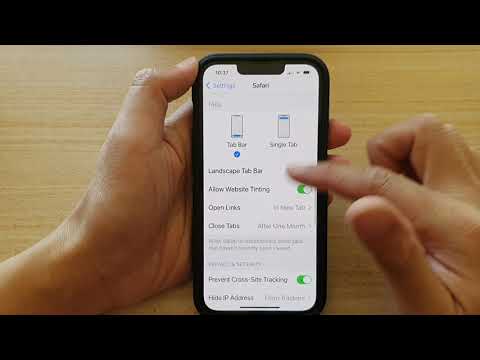
Privacy is a pillar of secure software management. Within the Safari settings, locate Hide IP Address and set it to "From Trackers." This routes your traffic through two separate relays, masking your precise location. For users running automated web scrapers or research bots, this prevents sites from throttling your connection based on your IP signature, ensuring consistent uptime for your data-gathering processes.
5. Force 'Automatic Reader Mode' on Research Sites
To streamline information consumption, you can automate the removal of visual noise. Go to Settings > Safari > Reader and enable "All Websites." This leverages Safari’s built-in software logic to strip away ads, headers, and sidebars, leaving only the raw text and essential images. This creates a standardized layout that is significantly easier for OCR (Optical Character Recognition) tools and AI summarizers to process if you are capturing web data for your knowledge base.
AI Implementation Score
| Setting Optimization | Efficiency Gain | Automation Level | Security Impact |
|---|---|---|---|
| Disable Preload | High | Low | Medium |
| ITP Tracking | Medium | High (ML-driven) | High |
| Auto-Close Tabs | High | High | Low |
| IP Masking | Medium | Medium | High |
| Reader Mode | High | High | Medium |
By refining these Safari configurations, you transform a standard browser into a specialized tool for professional-grade data management and efficiency. Reducing background noise and automating cleanup tasks allows your iPhone to function as a more effective node in your broader AI-driven tech stack.
