
Optimizing your iPhone isn’t just about extending battery life; it is about reclaiming system resources and neural engine cycles for the tools that actually matter. As modern iOS versions integrate more deeply with on-device machine learning and AI-driven automation, the "noise" created by legacy background processes can throttle performance. To maximize your device's efficiency, here are the 10 settings you must deactivate immediately.
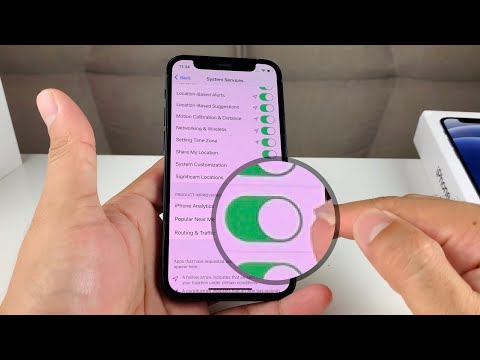
1. Background App Refresh (Global or Selective)
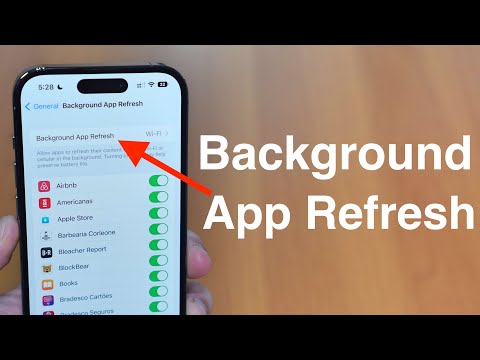
While Background App Refresh is designed to keep content current, it is a primary driver of CPU interrupts. For users leveraging local AI models or complex Shortcuts, this setting forces the system to juggle resources constantly. Go to Settings > General > Background App Refresh and turn it off entirely, or restrict it to essential communication apps only.
2. Significant Locations
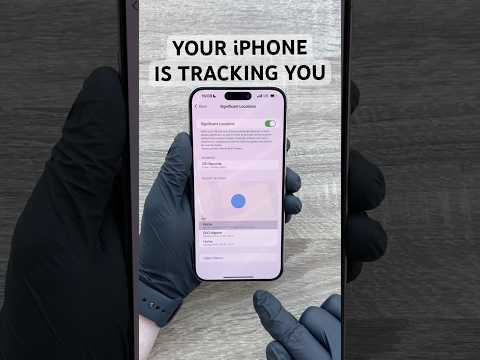
Deep within the privacy settings, Significant Locations allows your iPhone to track and save the places you visit most frequently. This creates a massive data footprint and consumes GPS resources. Navigate to Settings > Privacy & Security > Location Services > System Services > Significant Locations and toggle it off to preserve both privacy and battery longevity.
3. iPhone Analytics & Research
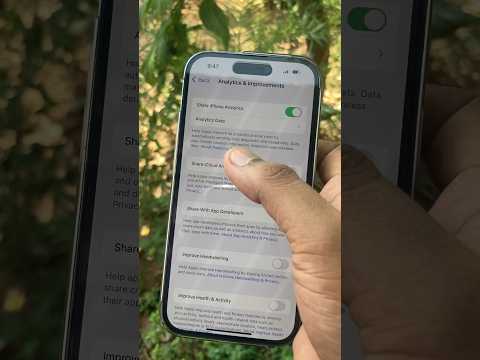
Your device is constantly compiling logs to send back to Apple. While helpful for developers, these background uploads consume bandwidth and processing power. Disable this via Settings > Privacy & Security > Analytics & Improvements. Turning off Share iPhone Analytics prevents the device from performing unnecessary data-packaging tasks.
4. Personalized Ads
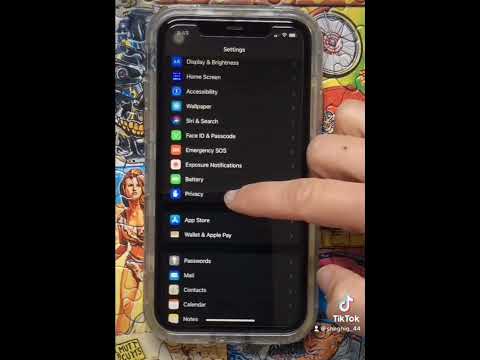
Apple’s advertising platform tracks your downloads and usage patterns to serve "relevant" ads. This is an unnecessary background process that offers zero benefit to the end-user. Go to Settings > Privacy & Security > Apple Advertising and turn off Personalized Ads to limit the profiling of your digital behavior.
5. System Services (Location Tracking)
The "System Services" menu contains several redundant toggles that ping the GPS frequently. Specifically, turn off Device Management, HomeKit (if not used), and Location-Based Alerts. This reduces the frequency of the "location arrow" appearing in your status bar, signaling a decrease in power draw. Access this in Settings > Privacy & Security > Location Services > System Services.
6. Raise to Wake
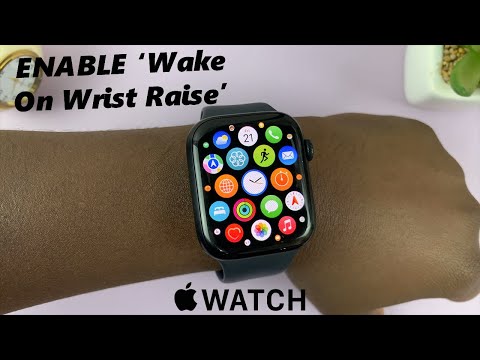
For users who keep their phones on a desk, Raise to Wake causes the screen to illuminate dozens of times a day due to minor vibrations. This is a significant drain on the OLED/LCD panel and the accelerometer. Disable it in Settings > Display & Brightness to ensure your screen only activates when you intend it to.
7. Preload Top Hit (Safari)
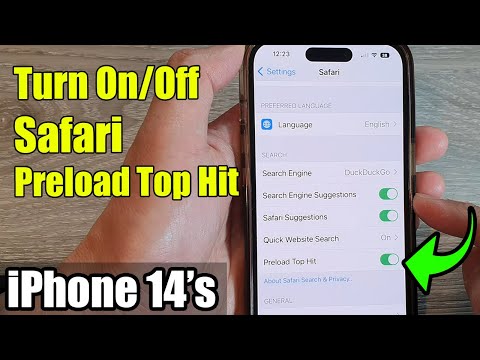
Safari attempts to predict which website you will click and preloads the data in the background. This not only uses data but also forces the browser engine to work on pages you might never visit. Turn this off in Settings > Safari > Preload Top Hit to streamline your browsing resources.
8. "Listen for" Hey Siri
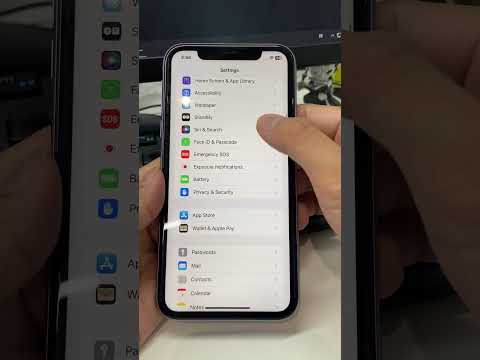
Unless you rely on hands-free automation, the "Listen for 'Hey Siri'" setting keeps the microphone and the Always-On processor in a high-alert state. For those looking to optimize silicon for active tasks, switching to Press Side Button for Siri is a much more efficient alternative. Find this in Settings > Siri & Search.
9. Automatic App Updates (Cellular)
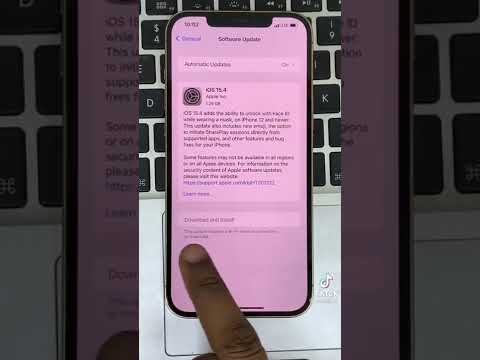
Large app updates can trigger at inconvenient times, heating the device and consuming cellular data. By disabling Automatic Downloads under Settings > App Store, you gain control over when your device performs high-intensity writes to the NAND flash storage.
10. In-App Ratings & Reviews
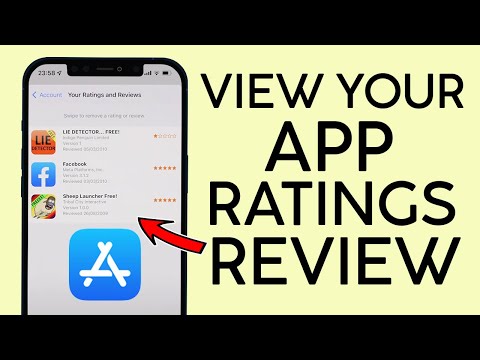
Disruptive pop-ups asking for reviews are a friction point in any professional workflow. You can disable these prompts globally by going to Settings > App Store and toggling off In-App Ratings & Reviews. This keeps your software experience clean and focused.
AI Implementation Score
By disabling these settings, you free up the Neural Engine and CPU for more intensive automated tasks. Here is the efficiency breakdown:
| Setting Category | Battery Impact | Privacy Gain | AI Efficiency Gain |
|---|---|---|---|
| Location Tracking | High | Maximum | Medium |
| Background Data | High | Medium | High |
| System Analytics | Low | High | Medium |
| UI/UX Polling | Medium | N/A | Low |
Summary: Taking five minutes to audit these settings ensures that your iPhone hardware is dedicated to your actual output rather than maintaining redundant background telemetry. Streamlining the OS is the first step toward a high-performance, AI-optimized mobile environment.
