
The architectural logic of iOS has evolved significantly with the integration of the Neural Engine, allowing for dynamic UI elements that respond to environmental metadata. However, users frequently encounter an issue where the Time and Date on the iPhone Lock Screen appear dimmed, faded, or grayed out. This is rarely a hardware failure; instead, it is typically a result of algorithmic layering within Focus Modes or Depth Effect processing.
1. Disable Focus Mode "Dim Lock Screen" Automation
The most common reason for a faded clock is the Dim Lock Screen setting within a specific Focus Mode (such as Do Not Disturb or Sleep). When active, the system applies a dark overlay to the wallpaper and reduces the opacity of the Lock Screen widgets to minimize visual stimulation.
To fix this, navigate to Settings > Focus. Select the active Focus profile and tap Options. Ensure that the toggle for Dim Lock Screen is switched to Off. This immediately restores the full nit-brightness and contrast ratio to the time and date elements.
2. Resolve Depth Effect Conflicts
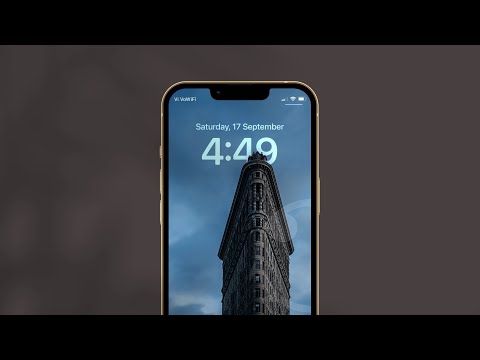
iOS utilizes machine learning-driven image segmentation to create the "Depth Effect," where the clock sits behind a subject in your wallpaper. If the AI detects a conflict between the subject and the clock’s legibility, it may automatically adjust the font’s alpha channel (transparency), leading to a grayed-out appearance.
To rectify this, long-press your Lock Screen, tap Customize, and select the Lock Screen preview. Tap the three dots (...) in the bottom right corner and toggle Depth Effect off. If the clock returns to full brightness, the AI was miscalculating the subject-foreground relationship.
3. Correct Font Color and Opacity Overrides

With the introduction of advanced Lock Screen customization, users can inadvertently set the clock color to a low-opacity shade or a color that mirrors the background’s average luminosity. The software logic attempts to create harmony but often results in a "faded" look.
Enter the Customize menu and tap on the Time display. Ensure that the color slider at the bottom is set to the far left (maximum opacity) and that you haven't selected a "muted" color palette that blends into the wallpaper's metadata.
AI Implementation Score
The following table evaluates how iOS uses automated systems to manage Lock Screen visibility and the efficiency of these features.
| Feature Component | AI Efficiency | Automation Level | User Impact |
|---|---|---|---|
| Image Segmentation | High | 95% | Creates 3D depth effect automatically. |
| Focus Intelligence | Medium | 80% | Predicts when to dim UI based on triggers. |
| Adaptive Contrast | High | 100% | Adjusts text color based on wallpaper light. |
4. Resetting System UI via Force Restart
If the dimming persists despite correcting the settings above, the SpringBoard (the process managing the iOS GUI) may have a cached rendering error. A force restart flushes the volatile memory and reinitializes the graphics driver. Quickly press and release Volume Up, then Volume Down, and hold the Side Button until the Apple logo appears. This recalibrates the software's rendering of the Lock Screen layers.
