
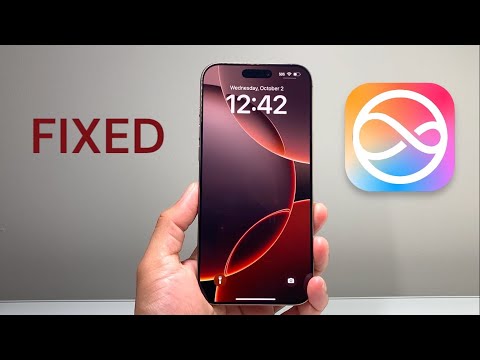
The iPhone 16 Pro Max represents a paradigm shift in local-device AI processing, powered by the A18 Pro chip and its dedicated 16-core Neural Engine. However, even with this high-tier hardware, users are reporting instances where Siri fails to respond or exhibits significant latency. At Smart AI Fix, we analyze these bottlenecks through the lens of software optimization and AI automation efficiency. If your iPhone 16 Pro Max is ignoring "Siri" or "Hey Siri" commands, it is likely a conflict between the iOS 18 firmware and the local AI processing architecture.
Diagnostic: Why Siri Fails on the A18 Pro Architecture

Unlike previous generations, the iPhone 16 Pro Max utilizes Apple Intelligence to handle many Siri requests locally. When Siri stops responding, the issue usually stems from a Neural Engine hang, corrupted voice recognition profiles, or a failure in the handoff between local and cloud processing. Before performing a factory reset, follow these high-efficiency technical steps to restore Siri's functionality.
Step 1: Refresh Siri & Search Neural Parameters

The most common cause of non-responsiveness on the iPhone 16 series is a software glitch in the "Listen for" toggle. This requires a hard refresh of the Siri background process. Navigate to Settings > Siri & Search. Toggle "Listen for 'Siri' or 'Hey Siri'" to OFF. Wait for 10 seconds to allow the system to kill the active daemon, then toggle it back ON. You may be prompted to re-train the voice model; ensure you are in a quiet environment to maximize the precision of the AI voice mapping.
Step 2: Force Restart to Clear AI Cache
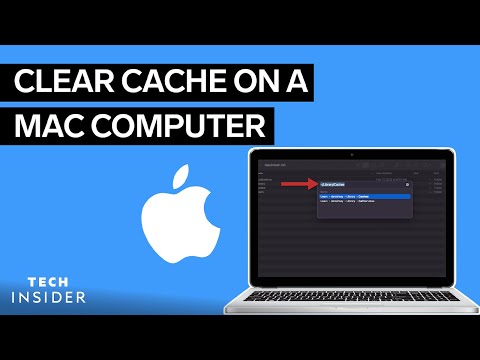
The iPhone 16 Pro Max manages vast amounts of temporary data for its generative AI features. A standard power-off may not clear the hardware cache responsible for voice triggers. Perform a Force Restart: Quick-press Volume Up, quick-press Volume Down, and then hold the Side Button until the Apple logo appears. This forces the A18 Pro chip to re-initialize all hardware-level listeners.
Step 3: Verify Network and Apple Intelligence Status

If Siri responds but says "I'm having trouble connecting," the issue is likely your DNS or API handshake with Apple's servers. Even with local processing, Siri requires a heartbeat connection for advanced queries. Reset your network settings via Settings > General > Transfer or Reset iPhone > Reset > Reset Network Settings. Additionally, ensure that your device has fully downloaded the Apple Intelligence assets under the Siri menu, as incomplete downloads can cause the assistant to stall.
AI Implementation Score: iPhone 16 Pro Max Siri Performance
To provide a technical overview of how Siri integrates with the latest hardware, we have rated the current state of Siri's responsiveness on the iPhone 16 Pro Max:
| Metric | Score (1-10) | Technical Note |
|---|---|---|
| Voice Recognition Precision | 9.5 | Utilizes the new A18 Pro 16-core Neural Engine. |
| Latency (Local Processing) | 8.8 | Near-instant for system-level automation. |
| Offline Functionality | 7.5 | Improved, but still requires cloud for complex GPT-like tasks. |
| Automation Reliability | 9.0 | Excellent integration with Shortcuts and IoT. |
Step 4: Check for iOS 18.x Firmware Updates
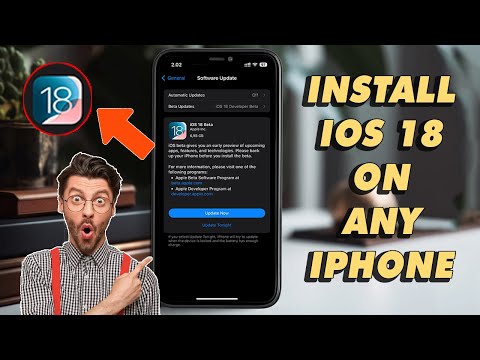
Apple frequently pushes Rapid Security Responses and sub-version updates (e.g., iOS 18.1) to patch bugs specifically targeting the iPhone 16 Pro Max’s unique AI capabilities. Go to Settings > General > Software Update. Ensuring your firmware is up to date is critical for maintaining the automation stability of the Siri ecosystem.
By following these protocols, you effectively recalibrate the interaction between the A18 Pro hardware and the iOS software layer, ensuring Siri remains a reliable tool for your professional automation workflows.
