
The iPhone 13 Pro remains a staple for power users due to its A15 Bionic chip and high-refresh-rate ProMotion display. Whether you are capturing high-fidelity gameplay or creating software tutorials, the ability to record your screen with synchronized internal and external audio is critical for professional workflows. By leveraging the iOS Control Center, users can bypass third-party software and utilize native system resources for low-latency capture.

Step 1: Configuring the Control Center for Rapid Access
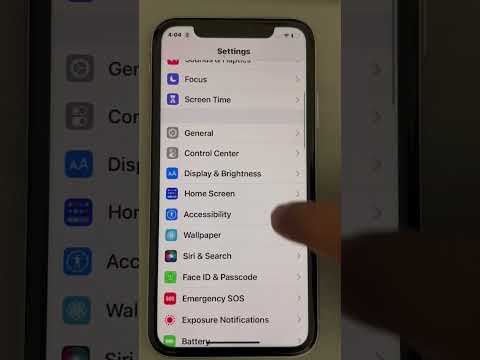
Before initiating a recording, you must ensure the Screen Recording module is active within your system interface. Navigate to Settings > Control Center. Locate "Screen Recording" under the "More Controls" list and tap the green "plus" icon to move it to the "Included Controls" section. This allows for instant access via the upper-right swipe gesture, minimizing the time spent navigating menus.
Step 2: Activating the Microphone for Dual-Channel Audio
By default, the iPhone 13 Pro records system audio but keeps the external microphone muted. To include your voice or ambient sound, swipe down from the top-right corner to open the Control Center. Instead of tapping the Record icon, perform a long-press (Haptic Touch) on it. A hidden sub-menu will appear. Tap the Microphone icon at the bottom of the screen to toggle it to "Microphone On." Once enabled, tap "Start Recording" to begin the countdown.
Step 3: Post-Recording Optimization and AI Integration

Once the recording is complete (indicated by the red status bar in the upper left), the file is saved to your Photos app. For those focused on AI efficiency, these recordings can be processed through automated tools. For instance, using AI-driven noise reduction software can clean up the audio captured via the built-in microphone, while automated transcription services can convert your spoken instructions into text overlays or meta-data for searchable archives.
AI Implementation Score
In our technical assessment, we evaluate how effectively this feature integrates with broader automation and intelligence workflows.
| Criteria | Score (1-10) | Technical Reasoning |
|---|---|---|
| Hardware Efficiency | 9.5 | The A15 Bionic handles H.264/H.265 encoding with minimal CPU overhead. |
| Automation Potential | 8.0 | Native support for iOS Shortcuts allows for automated file renaming and cloud uploads. |
| Audio/Visual Sync | 9.0 | Low-latency internal routing ensures perfect alignment between system sound and video. |
| AI Compatibility | 8.5 | High-bitrate output provides a clean data source for AI transcription and object detection. |
Mastering this built-in utility on the iPhone 13 Pro eliminates the need for external capture cards for most professional tasks. By toggling the microphone via the Haptic Touch menu, you ensure that your technical demonstrations are both visually clear and audibly informative, providing a high-quality foundation for further AI-enhanced post-production.
