
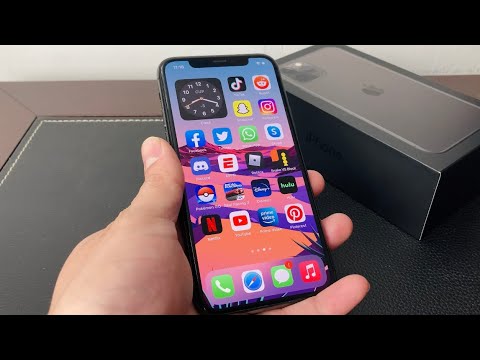
The transition from physical hardware to gesture-based navigation in the iPhone 11 Pro marked a significant shift in Apple's UI philosophy. However, for power users focused on workflow efficiency and rapid task execution, the absence of a dedicated home button can occasionally feel like a bottleneck. At Smart AI Fix, we view software-driven solutions as the primary method to bridge the gap between legacy tactile feedback and modern edge-to-edge display utility.
Activating the Virtual Home Button Architecture
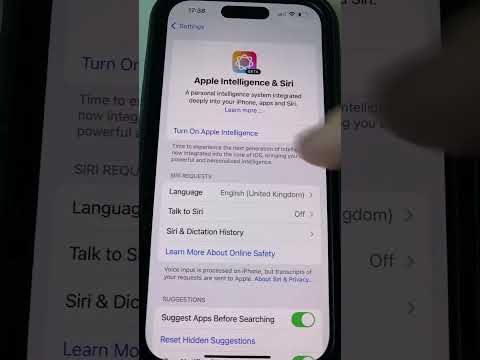
To enable the "Home Button Trick" on an iPhone 11 Pro, we utilize the AssistiveTouch software layer. This is not merely an accessibility feature; it is a programmable interface that can be automated to trigger complex system actions with a single tap. Follow these technical steps to initiate the deployment:
1. Navigate to Settings and select the Accessibility module.
2. Under the "Physical and Motor" subsection, tap on Touch.
3. Select AssistiveTouch at the top of the menu and toggle the switch to On.
Once activated, a floating software overlay will appear. While the default configuration provides a menu, senior users should optimize this for single-action efficiency by customizing the "Top Level Menu" or assigning "Custom Actions."
Optimizing Custom Actions for Maximum Productivity
The true "trick" lies in the automation of secondary tasks. By mapping specific software triggers to the virtual button, you can bypass multi-step gesture sequences. We recommend the following configuration for high-performance environments:
Single-Tap: Set to "Home" to replicate the classic hardware experience.
Double-Tap: Set to "App Switcher" for rapid multitasking between AI tools and browsers.
Long Press: Set to "Siri" or "Screenshot" to eliminate the need for simultaneous side-button presses, which often leads to accidental device locking.
AI Implementation Score
To evaluate how this software modification impacts the overall user experience and system synergy, we have developed the following scoring matrix:
| Metric | Score (1-10) | Technical Rationale |
|---|---|---|
| Workflow Efficiency | 9.5 | Reduces thumb travel distance and simplifies complex gesture chains. |
| System Integration | 10.0 | Native iOS feature; zero impact on battery or CPU cycles. |
| Customization Depth | 8.0 | Supports Shortcuts integration for advanced automation. |
| User Interface Consistency | 7.5 | The floating icon can occasionally obscure minor UI elements in non-optimized apps. |
By leveraging the AssistiveTouch layer, iPhone 11 Pro users can reclaim the tactile speed of the legacy home button while maintaining the screen real estate of the modern OLED panel. This software-first approach ensures that your hardware adapts to your productivity needs, rather than the other way around.
