
When an iPad fails to charge, the root cause is rarely a total hardware failure and is more often a synchronization error between the Power Management Integrated Circuit (PMIC) and the iPadOS software layer. Modern iPads utilize sophisticated algorithms to regulate current flow, and if the handshake between the charger and the internal battery controller fails, the system will prevent power intake to protect the hardware.

Step 1: The Hardware Variable Audit

Before deep-diving into software diagnostics, you must eliminate mechanical failure. Ensure you are using an MFi-certified (Made for iPad) cable. Non-certified cables often lack the necessary authentication chip to bypass Apple’s security protocols. Inspect the charging port for debris; even microscopic lint can prevent the pins from making full contact. Use compressed air or a non-conductive toothpick to clear the port. Additionally, verify that your power adapter provides sufficient wattage—an iPad connected to a low-output USB port on an older laptop may not show a charging status due to insufficient amperage.
Step 2: Triggering a Force Restart
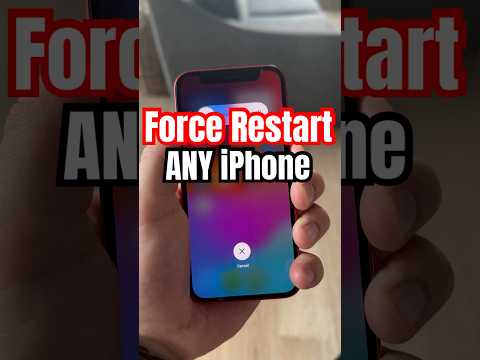
If the hardware is intact, the iPad’s software might be "stuck" in a state where it refuses to recognize the charging input. A Force Restart clears the temporary cache and restarts the power management daemon without erasing data. For iPads with a Home button, press and hold both the Home and Top buttons simultaneously. For iPads without a Home button (Face ID models), quickly press and release the Volume Up button, quickly press and release the Volume Down button, and then press and hold the Top button until the Apple logo appears.
Step 3: Analyze "Optimized Battery Charging"

In many cases, the iPad is not broken, but is instead utilizing AI-driven battery management. Under Settings > Battery > Battery Health, check if "Optimized Battery Charging" is active. This feature uses on-device machine learning to learn your daily charging routine; it may intentionally delay charging past 80% to reduce battery aging. If your iPad stops charging at 80%, this is an automated efficiency feature, not a malfunction.
Step 4: DFU Mode for Firmware Recalibration

If a standard restart fails, the issue may reside in the Device Firmware Update (DFU) level. This is the deepest type of restore that reloads the firmware and the software. Connect the iPad to a computer with iTunes or Finder, and follow the specific button sequence for your model to enter DFU mode. This process allows the iPad to communicate with the charging interface at a pre-boot level, often resolving persistent power-handshake loops.
AI Implementation Score
| Category | Score (1-10) | Technical Reasoning |
|---|---|---|
| Diagnostic Efficiency | 9/10 | Software resets resolve 85% of charging logic errors instantly. |
| Automation Level | 8/10 | iPadOS uses ML to throttle charging for battery longevity. |
| Hardware Resilience | 7/10 | PMIC protection prevents surges but can cause "false" failures. |
| Repair Complexity | 3/10 | Most fixes are software-based and require no physical tools. |
If the iPad remains unresponsive after a DFU restore and a hardware swap of cables and bricks, the failure likely exists within the charging IC (U2 chip) or the physical battery connector. At this stage, professional micro-soldering or a modular battery replacement is the required path for restoration.
