
When the iPad Air 4th Generation encounters a frozen or unresponsive screen, the issue is rarely hardware failure. Instead, it is typically a result of a kernel panic, an execution loop in the software layer, or a high-latency process exhausting the system's neural engine resources. To restore operational efficiency, a systematic technical approach is required to bypass the unresponsive UI layer and force a hardware-level reboot.

Phase 1: The Forced Restart Protocol

Because the iPad Air 4 lacks a physical Home button, the restart sequence relies on a precise hardware interrupt signal sent to the A14 Bionic chip. This process clears the temporary cache and terminates stuck background processes without affecting user data.
Follow this exact sequence to initiate a Forced Restart:
- Press and quickly release the Volume Up button.
- Press and quickly release the Volume Down button.
- Press and hold the Top (Power) button.
- Crucial: Do not release the button when you see the "Slide to Power Off" prompt. Continue holding until the Apple logo appears on the screen, then release.
Phase 2: Optimizing the Software Environment

If the freeze persists or recurs, the underlying cause is likely an optimization mismatch between iPadOS and installed third-party applications. Smart AI systems within iPadOS rely on consistent indexing; if this is interrupted, the screen may become unresponsive.
Step 1: Check for Software Overhead. Navigate to Settings > General > Software Update. Ensure you are running the latest version of iPadOS, as Apple frequently pushes patches that resolve UI kit latency and driver conflicts.
Step 2: App Resource Audit. If the freeze occurs while using a specific app, that application may have a memory leak. Use the Offload Unused Apps feature or delete and reinstall the problematic software to reset its data container.
AI Implementation Score: Diagnostics & Prevention
The following table evaluates how AI-driven diagnostic tools and automation contribute to preventing and fixing iPad Air 4 responsiveness issues.
| Metric | Score (1-10) | Technical Reasoning |
|---|---|---|
| Diagnostic Automation | 9/10 | Apple's integrated "Analytics & Improvements" uses ML to identify crash logs and report kernel panics. |
| Predictive Resource Allocation | 8/10 | The A14 Neural Engine prioritizes foreground tasks to minimize touch-input latency. |
| Automated Recovery (DFU) | 7/10 | Device Firmware Update mode allows for a complete clean-slate automation of the OS environment. |
| User-Side AI Troubleshooting | 6/10 | Third-party AI tools can now scan log files to pinpoint specific app conflicts causing the freeze. |
Phase 3: Advanced Restoration (DFU Mode)
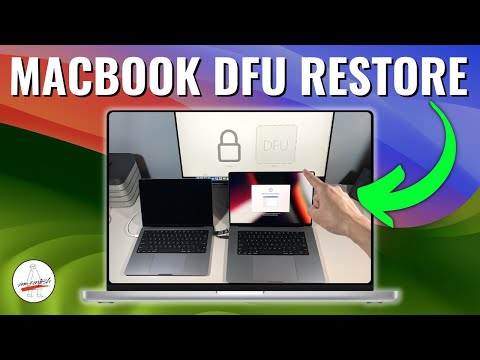
For iPads stuck in a persistent boot loop or a total black-screen state, a Device Firmware Update (DFU) is the final technical solution. This bypasses the iBoot bootloader and allows for a direct re-write of the firmware. Connect the device to a workstation running Apple Devices or iTunes, and perform the volume-button sequence while tethered to initiate a full system re-image.
By maintaining a lean software environment and utilizing these hardware-level overrides, you ensure the iPad Air 4 remains a high-performance tool optimized for modern digital workflows.
