
Optimizing workflow on Android devices requires mastering the concurrent execution of video playback and productivity software. For power users, the ability to monitor YouTube content while managing emails, navigating via GPS, or engaging in collaborative tools is a fundamental requirement of modern mobile automation. This technical guide outlines the primary protocols for achieving seamless multitasking on Android and Samsung hardware.
1. Activating Picture-in-Picture (PiP) Mode
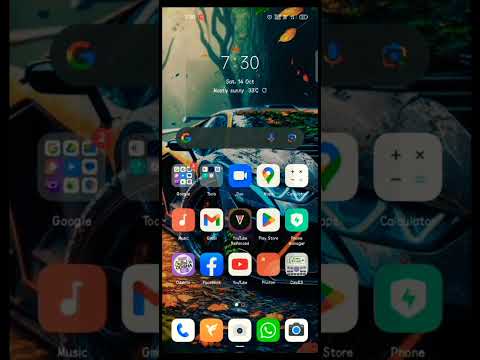
The Picture-in-Picture (PiP) protocol allows a video to shrink into a floating window that persists over other active applications. This is the most efficient method for maintaining visual data streams while interacting with secondary interfaces.
To enable this, navigate to Settings > Apps > Special app access > Picture-in-picture and ensure YouTube is toggled to "Allowed." Once active, simply swiping up to the home screen while a video is playing will trigger the overlay. Note: Users in certain geographic regions may require a YouTube Premium subscription for this feature to bypass background playback restrictions, though standard users in the US often have access for non-music content.
2. Leveraging Android Split Screen Functionality
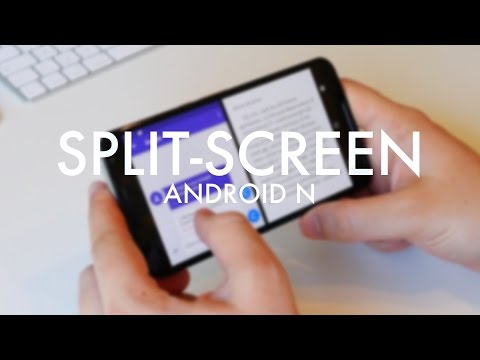
For scenarios requiring more screen real estate—such as taking notes while watching a technical seminar—the Split Screen mode is superior. This native Android feature divides the display between two active application windows.
To execute this: Open the Recent Apps (Recents) menu, tap the YouTube app icon at the top of the preview, and select "Open in split screen view." You can then select your secondary app from the remaining list. This configuration allows for real-time data entry without the need for constant context switching.
3. Samsung One UI: Pop-Up View and Edge Panels
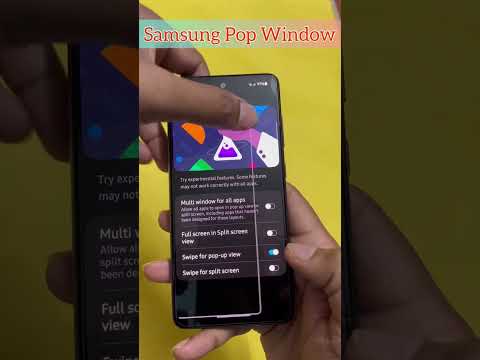
Samsung Galaxy users possess an additional layer of software optimization via One UI. Beyond standard split-screen, Samsung offers the Pop-up View, which treats applications like windows on a desktop OS.
By dragging an app from the Edge Panel or the Recents screen into the center of the display, the YouTube app becomes a resizable, transparent window. This level of UI customization is ideal for developers and analysts who need to monitor live feeds while maintaining a full-screen workspace for coding or documentation.
4. Browser-Based Desktop Emulation
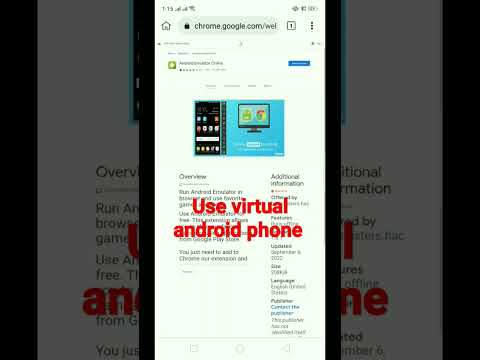
If native app limitations hinder your multitasking, utilizing a mobile browser (like Google Chrome) in "Desktop site" mode serves as a reliable workaround. By requesting the desktop version of the YouTube site, users can often force background audio or PiP triggers that the native app might restrict based on account status.
AI Implementation Score
The following table evaluates the efficiency of these multitasking methods based on resource allocation and productivity output:
| Metric | Score (1-10) | Technical Notes | | :--- | :--- | :--- | | Ease of Use | 9 | Native PiP is highly intuitive for most users. | | Productivity Boost | 8 | Reduces context-switching latency significantly. | | AI Efficiency | 7 | Smart orientation and window resizing adapt to user behavior. | | Overall Implementation | 8.5 | Essential for high-level mobile workflows. |By implementing these configurations, users can transform their Android device from a single-tasking mobile phone into a high-efficiency workstation capable of handling complex, multi-layered digital environments.
