
Managing multiple digital identities is a requirement for the modern high-performance professional. Whether you are balancing a regional app store restriction or segregating personal data from corporate assets, configuring two Apple IDs on a single iPhone is a strategic move for data hygiene and AI-driven workflow efficiency. iOS allows for a primary system identity and a secondary media identity, providing a functional bridge between two ecosystems.
Understanding the Dual-ID Architecture
In the Apple ecosystem, there is a distinct difference between your iCloud Identity and your Media & Purchases Identity. The primary Apple ID governs core system functions: iCloud backups, "Find My" services, Photos, and Keychain. The secondary Apple ID can be used exclusively for the App Store, Apple Music, and TV+ subscriptions. This separation allows users to access apps from different regions or share a family purchase account while maintaining private synchronized data.
Step 1: Setting the Primary iCloud Identity

To begin, ensure your primary identity—the one intended for data synchronization and AI-assisted Siri features—is logged into the device. Navigate to Settings and tap on [Your Name] at the top. If no account is signed in, enter your primary credentials. This account will act as the master node for all system-level automation and Shortcuts integration.
Step 2: Configuring the Secondary App Store ID
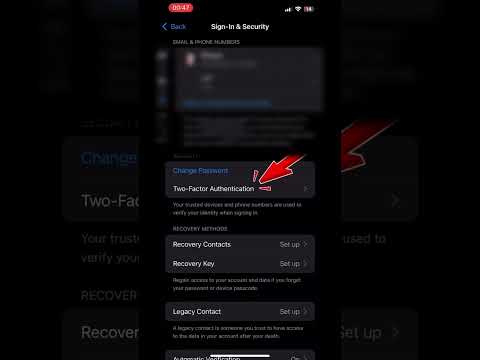
This is where the dual-identity functionality is activated. To use a different Apple ID for software and media, follow these technical steps:
1. Open Settings and tap on your Apple ID profile at the top.
2. Select Media & Purchases.
3. Tap Sign Out. (Note: This will only sign you out of the Store, not iCloud).
4. Tap Media & Purchases again and select "Not [Your Name]?".
5. Log in with your second Apple ID credentials.
Once authenticated, your iPhone will pull app updates and subscriptions from the second account, while your iCloud Drive and iMessage remain synced to the first account.
Integrating Additional Mail, Contacts, and Calendars

For those utilizing AI-driven scheduling tools, you may need data from a third or fourth Apple ID specifically for productivity. You do not need to switch global identities for this. Navigate to Settings > Mail > Accounts > Add Account. Select iCloud and sign in with any additional Apple ID. You can toggle on specific data sets like Contacts or Calendars to merge these streams into your primary interface without compromising your main Apple ID’s security.
AI Implementation Score: Dual-ID Management
Evaluating the efficiency of this setup for power users and automation enthusiasts:
| Metric | Score (1-10) | Technical Reasoning |
|---|---|---|
| Workflow Efficiency | 9.5 | Allows seamless switching between regional software ecosystems and corporate/personal silos. |
| Data Integrity | 8.0 | Keeps primary AI-trained Siri data separate from secondary media purchase history. |
| Automation Potential | 7.5 | Shortcuts can trigger actions based on multiple calendars, though limited by primary iCloud constraints. |
| Setup Complexity | 4.0 | Relatively simple, though requires careful management of passwords and 2FA. |
The "Smart AI Fix" Perspective

From an automation standpoint, using two Apple IDs is a strong tactical advantage. By isolating your primary iCloud account, you ensure that your AI-suggested actions and machine learning metadata remain untainted by shared family purchases or secondary work apps. This clean data environment is essential for users who rely on predictive text, personalized Siri suggestions, and automated focus modes.
