
Streamlining Mobile Workflows: The Strategic Implementation of Auto Clickers on Android

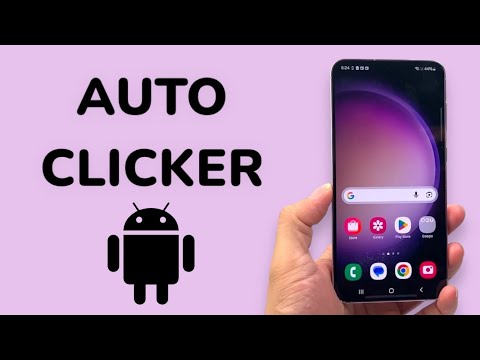
In the evolving landscape of mobile productivity, manual repetition is the enemy of efficiency. Whether you are performing stress tests on a mobile application, automating data entry, or navigating high-frequency interactions in gaming environments, an Auto Clicker serves as a foundational automation tool. By leveraging accessibility services, these applications simulate human touch events with microsecond precision, effectively removing the bottleneck of manual input.
Step 1: Selecting a High-Performance Automation Tool
For most Android and Samsung users, the industry standard is Auto Clicker - Automatic Tap (developed by True Developers Studio) or Macrodroid for those seeking AI-integrated logic. To begin, navigate to the Google Play Store and download a reputable auto-clicking utility. Ensure the application supports both Single Target Mode for simple tasks and Multi-Target Mode for complex, sequential automation workflows.
Step 2: Configuring Accessibility Permissions for System Overlays

Android’s security architecture requires explicit permission for any software to simulate touch. This is handled through the Accessibility Service API. Once the app is installed, follow these steps:
1. Open the application and select "Enable" under the service settings.
2. You will be redirected to the Android Accessibility Settings menu.
3. Locate the installed service, toggle the switch to On, and confirm the system dialogue. This allows the software to interact with the UI layer of other applications.
Step 3: Parameters and Multi-Target Configuration

To achieve maximum efficiency, you must calibrate the Click Interval. For high-speed automation, setting an interval of 40-100 milliseconds is optimal. However, if you are automating a sequence of events—such as navigating a multi-page form—use Multi-Target Mode. This allows you to place numbered "targets" on different parts of the screen, each with its own delay and duration, creating a sophisticated script that mimics complex human behavior.
AI Implementation Score: Automation Efficiency
To evaluate how effectively an auto clicker integrates into a modern AI-driven workflow, we use the following metrics:
| Metric | Score (1-10) | Technical Justification |
|---|---|---|
| Setup Efficiency | 9/10 | Minimal configuration required for standard UI overlay. |
| Logic Complexity | 6/10 | Relies on coordinate-based triggers rather than visual recognition. |
| System Resource Impact | 8/10 | Low overhead; modern Android kernels prioritize accessibility services. |
| AI Synergy | 7/10 | Can be combined with Tasker or IFTTT for context-aware execution. |
Optimizing for Samsung One UI Environments

On Samsung devices, users can further enhance automation by integrating auto-clickers with Modes and Routines. For example, you can set a routine to automatically launch the auto clicker and enable specific configurations when the device connects to a specific Wi-Fi network or at a certain time of day. This creates a "set-and-forget" ecosystem, allowing the hardware to work autonomously without manual intervention.
Note on Security: Always ensure that Battery Optimization is disabled for your chosen auto clicker. Android’s aggressive power management often kills background processes, which can interrupt long-running automation scripts. By "Locking" the app in the recent tasks view, you ensure continuous operation for high-stake technical tasks.
