
Managing Digital Footprints: A Technical Guide to Disabling Location Services on iOS
In the modern ecosystem of AI-driven data collection, location metadata serves as a primary fuel for predictive algorithms. For users prioritizing privacy or looking to minimize the background processing load on their devices, managing Location Services on an iPhone is a critical administrative task. This guide outlines the precise steps to regain control over your spatial data, moving from global toggles to granular, app-specific permissions.
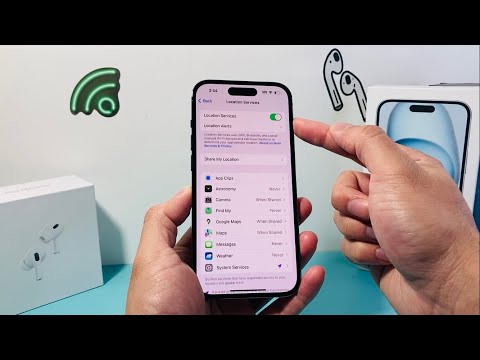
Deactivating Global Location Services
To completely sever the connection between your device's GPS hardware and the software layer, you must navigate to the core privacy settings. This action prevents both native Apple services and third-party applications from accessing your coordinates.
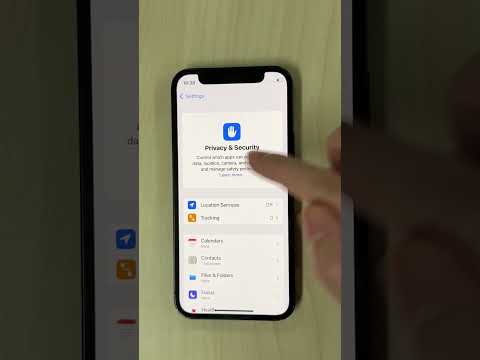
1. Open the Settings application on your iPhone.
2. Scroll down and select Privacy & Security.
3. Tap on Location Services at the top of the menu.
4. Toggle the Location Services switch to the Off position.
A system prompt will appear, notifying you that Location Services will be disabled for all apps, though your personal "Find My iPhone" settings can temporarily override this if the device is put into Lost Mode. Confirm by tapping Turn Off.
Granular Control and AI Optimization
For users who rely on automation and AI efficiency, a total blackout may not be ideal. Many automated workflows—such as smart home triggers or "Arrival" notifications—require background location data. Instead of a global shutdown, you can manage permissions on a per-app basis to ensure only essential software utilizes your battery and data.
Within the Location Services menu, you will see a list of installed applications. You can assign one of four states to each: Never, Ask Next Time Or When I Share, While Using the App, or Always. By selecting "While Using the App," you allow the software to function correctly during active sessions while preventing it from tracking your movements in the background, thus preserving CPU cycles and battery health.
System Services and Significant Locations

Deep within the Location Services menu lies System Services. This section controls how iOS uses location data for internal functions like Apple News, Siri Suggestions, and Significant Locations. The "Significant Locations" feature uses end-to-end encrypted AI to learn places that are important to you. If you wish to stop your device from building this local intelligence profile, you must enter this submenu and toggle it off manually.
AI Implementation Score
The following table evaluates the efficiency and impact of managing location settings on the overall iPhone user experience and data privacy profile.
| Metric | Score (1-10) | Technical Notes |
|---|---|---|
| Ease of Execution | 9/10 | Straightforward UI path within the Privacy & Security stack. |
| Privacy Impact | 10/10 | Eliminates the primary data point for behavioral tracking. |
| AI Functionality Retention | 4/10 | Disables location-aware Siri suggestions and automation. |
| Battery Optimization | 8/10 | Reduces GPS hardware pings and background data transmission. |
By mastering these settings, users can balance the trade-off between AI-enhanced convenience and data sovereignty. Controlling where and when your iPhone broadcasts its position is the first step in auditing your digital shadow in an increasingly automated world.
