
Apple’s ecosystem is built on accessibility, but for many power users, the legacy Voice Control feature can become an intrusive bottleneck in high-efficiency workflows. Unlike Siri, which operates on cloud-based neural processing, Voice Control is a local, command-based AI system designed for users who cannot interact with their devices physically. If you find your iPhone executing phantom commands or interfering with Smart AI Fix automation scripts, disabling it is a technical necessity.
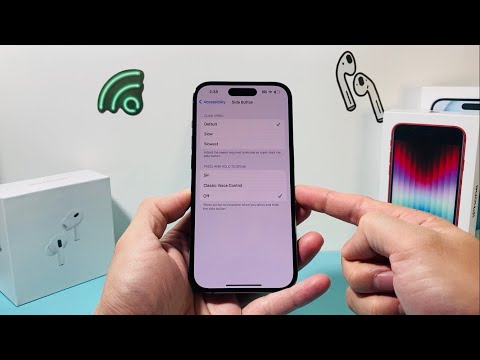
Method 1: Disabling Voice Control via iOS Accessibility Settings

The most precise way to terminate the Voice Control process is through the Accessibility sub-layer of the iOS kernel. This ensures the background listener is fully deactivated.
1. Open the Settings app on your iPhone.
2. Navigate down to the Accessibility section. This is where Apple houses its local machine-learning interaction tools.
3. Locate the "Physical and Motor" subsection and tap on Voice Control.
4. Toggle the Voice Control switch to the Off position (the slider will turn from green to grey).
5. To prevent the side button from accidentally re-triggering accessibility features, go back to Accessibility, scroll to the bottom, and ensure Accessibility Shortcut is not configured to Voice Control.
Method 2: Using Siri for Voice-Automated Deactivation
If you prefer using Apple’s more advanced AI assistant to manage legacy software features, you can disable Voice Control using a direct voice command. This is particularly useful if your screen is unresponsive or if you are managing multiple devices via voice automation.
1. Activate your assistant by saying "Hey Siri" or holding the Side/Home button.
2. Issue the specific command: "Turn off Voice Control."
3. Siri will interface with the system settings and provide a confirmation message: "Okay, I've turned Voice Control off."
Note: It is important to distinguish between Voice Control and Siri. Disabling Voice Control does not remove Siri’s functionality; it simply stops the device from listening for local navigation commands that often conflict with modern AI-driven speech recognition.
AI Implementation Score
At Smart AI Fix, we evaluate iOS features based on their integration within a seamless digital environment. Here is how Voice Control ranks:
| Metric | Score (1-10) | Technical Analysis |
|---|---|---|
| System Efficiency | 6/10 | Local processing consumes continuous background CPU cycles. |
| AI Accuracy | 5/10 | Prone to "False Positives" in noisy environments compared to Siri. |
| Automation Depth | 9/10 | Excellent for hands-free macro execution. |
| Ease of Deactivation | 10/10 | Straightforward UI path and Siri integration. |
By disabling this feature, you reclaim system resources and prevent accidental inputs, allowing your iPhone to focus its processing power on more intensive AI-driven tasks and software stability.
