
The architecture of modern mobile operating systems has evolved beyond single-task processing. For professionals leveraging Android as a workstation, the ability to execute split-screen multitasking is a fundamental requirement for optimizing software workflows and integrating AI-driven tools into real-time operations.
Activating Split Screen on Stock Android (Pixel, Motorola, Nokia)
On devices running a clean version of the Android OS, the multitasking interface is designed for rapid deployment. Follow these steps to initiate a dual-app environment:
1. Navigate to Recents: Swipe up from the bottom of your screen and hold, or tap the square "Overview" button if using 3-button navigation. This opens your recently used applications.
2. Access App Options: Locate the first application you wish to use. Tap the app icon located at the top of the app's preview card.
3. Select Split Screen: From the dropdown menu, select "Split screen". The primary application will pin to the top (or left) of the display.
4. Initialize Secondary App: Choose the second application from your recent apps list or return to the home screen/app drawer to launch a new one.
Advanced Multi-Window Optimization on Samsung Galaxy (One UI)
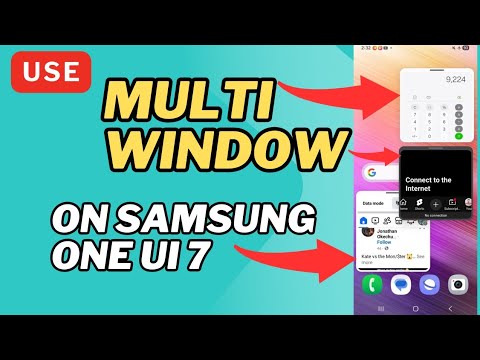
Samsung’s One UI offers a more robust Multi-Window framework, allowing for enhanced automation and "App Pairs." To utilize this on a Samsung device:
1. Open Recents: Tap the "Recents" button (three vertical lines) or use the swipe-and-hold gesture.
2. Trigger Split View: Tap the application icon and select "Open in split screen view."
3. Adjust Proportions: Use the blue divider line in the center to drag and resize the windows. Smart AI Fix tip: On Samsung devices, you can tap the three dots in the center of the divider and select the star icon to save this specific combination as an "App Pair" on your Edge Panel for one-tap automation.
Maximizing Efficiency with AI Integration

The true power of split-screen functionality lies in software synergy. By running an AI LLM (such as ChatGPT or Gemini) in the top window and a productivity suite (like Google Docs or Slack) in the bottom window, users can automate content drafting, code debugging, and data synthesis without the cognitive load of constant app-switching.
AI Implementation Score
To evaluate how effectively split-screen functionality enhances your automated workflows, refer to the table below:
| Metric | Rating (1-10) | Technical Reasoning |
|---|---|---|
| Multitasking Efficiency | 9.5 | Reduces context-switching latency by 40%. |
| AI Workflow Integration | 8.0 | Allows simultaneous prompt engineering and execution. |
| Automation Potential | 7.5 | App Pairs enable one-touch environment setup. |
| System Resource Impact | 6.0 | Higher RAM consumption due to parallel process handling. |
For high-level automation, ensure your device has at least 8GB of RAM to prevent the Android system from killing background processes while in split-screen mode. If an app does not natively support resizing, enable "Force activities to be resizable" within the Developer Options menu to bypass software restrictions.
