
Managing the influx of digital communication is a critical skill for maintaining focus in an era of constant connectivity. For power users and productivity enthusiasts, the ability to selectively silence incoming data streams—specifically text notifications from a single individual—is a fundamental step in reducing cognitive load. This process allows you to maintain professional boundaries or minimize distractions without resorting to a total device blackout.

The Direct Method: Using 'Hide Alerts' in Messages
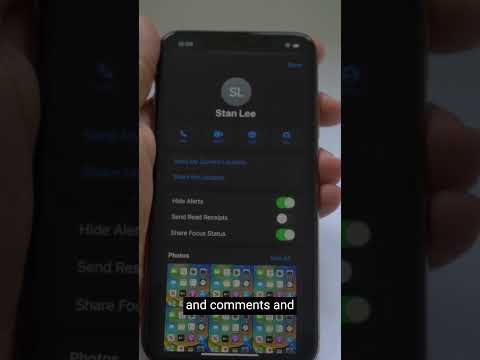
The most efficient way to suppress notifications for a specific contact is through the native Hide Alerts feature within the Messages app. This method ensures that while you still receive messages, you will not be interrupted by haptic feedback, sound, or lock screen banners for that specific thread.
1. Open the Messages app on your iPhone.
2. Locate the conversation with the person you wish to silence.
3. Swipe left on the conversation thread from the main list view.
4. Tap the purple bell icon (Hide Alerts). Alternatively, you can tap into the conversation, click the contact icon at the top of the screen, and toggle the Hide Alerts switch to ON.
Once enabled, a crescent moon icon will appear next to the contact’s name in your message list, indicating that the thread is muted. This is a persistent setting that remains active until manually reversed.
Advanced Automation: Using Focus Filters

For users who require a more automated approach, Apple’s Focus Mode architecture allows for sophisticated notification filtering. This is particularly useful if you only want to silence a person during specific hours (e.g., during deep work sessions or late-night hours).
1. Navigate to Settings and select Focus.
2. Select a specific Focus profile (such as "Work" or "Do Not Disturb").
3. Under Allow Notifications, tap on People.
4. Choose Silence Notifications From and add the specific contact to the list.
This implementation leverages the iOS intelligence engine to dynamically adjust your notification environment based on your location, time of day, or app usage, providing a hands-off approach to digital boundaries.
AI Implementation Score
To evaluate how these features integrate with modern software efficiency standards, we have rated the "Silence" functionality based on our Smart AI Fix criteria:
| Metric | Score (1-10) | Technical Rationale |
|---|---|---|
| Automation Capability | 8/10 | Focus Filters allow for scheduled and triggered silencing based on user behavior. |
| UX Efficiency | 10/10 | The "Swipe to Hide" gesture represents peak minimalist interface design. |
| Algorithmic Intelligence | 6/10 | Currently relies on manual user input rather than predictive behavioral analysis. |
| Cognitive Load Impact | 9/10 | Significantly reduces "notification fatigue" by filtering non-essential pings. |
By implementing these settings, you effectively transition from a passive recipient of data to an active curator of your digital environment. At Smart AI Fix, we recommend auditing your notification list weekly to ensure your mobile OS is optimized for maximum output and minimal distraction.
