
The iPhone SE 2nd Generation (2020) remains a powerful device in the iOS ecosystem, primarily due to its A13 Bionic chip and the tactile familiarity of the Home button. Capturing high-resolution screen data on this model is an essential workflow for developers, QA testers, and power users. While the hardware mimics older iterations, the integration with modern iOS automation tools allows for highly efficient data capture methods.
Method 1: The Standard Hardware Combination

The most direct way to capture a screenshot on the iPhone SE 2nd Gen is through a simultaneous hardware trigger. Because this model features a physical Home button with Touch ID, the process differs from the Face ID-enabled flagship models.
To execute this, press the Side button (located on the right edge of the device) and the Home button at the exact same time. Upon successful execution, the screen will flash white, and a thumbnail will appear in the lower-left corner. This thumbnail is a temporary cache; you can tap it to enter the "Markup" interface for immediate annotation or swipe it away to auto-save it to your Photos library.
Method 2: Software Automation via AssistiveTouch

For users looking to minimize mechanical wear on physical buttons or those requiring a one-handed software solution, AssistiveTouch offers a programmable interface. This is a primary recommendation for efficiency-focused workflows.
Navigate to Settings > Accessibility > Touch > AssistiveTouch and toggle the feature on. Under the "Custom Actions" menu, you can assign "Screenshot" to a Double-Tap or Long Press. This creates an on-screen floating menu that allows for instantaneous screen capture without physical button depression, leveraging the iOS software layer to bypass hardware latency.
Method 3: AI-Driven Capture with Siri

The integration of the A13 Bionic’s Neural Engine allows for seamless voice-activated commands. When hands-free operation is required—such as during technical demonstrations or software testing—Siri provides a zero-touch solution. Simply trigger the assistant by saying, "Hey Siri," followed by the command, "Take a screenshot." The AI processes the request locally, executes the capture, and saves the file directly to the "Screenshots" album in the 100% automated background process.
Method 4: Back Tap (iOS 14 and Later)
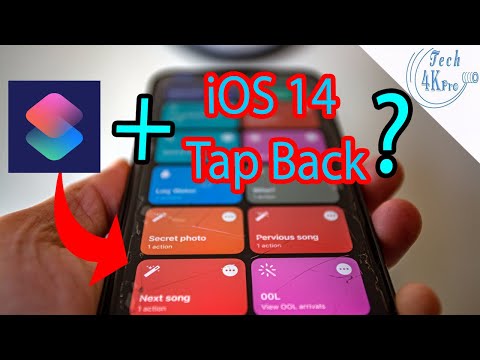
One of the most innovative "hidden" automation features on the iPhone SE (2020) is Back Tap. This utilizes the accelerometer and internal sensors to detect physical taps on the rear chassis of the phone. By navigating to Settings > Accessibility > Touch > Back Tap, you can set the "Double Tap" or "Triple Tap" action to "Screenshot." This turns the entire back of the device into a haptic shortcut, significantly increasing the speed of sequential data logging.
AI Implementation Score
The following table evaluates the efficiency and automation levels of each screenshot method available on the iPhone SE 2nd Generation:
| Method | Efficiency Rating | Automation Level | AI Integration |
|---|---|---|---|
| Hardware Buttons | High | Manual | None |
| AssistiveTouch | Very High | Semi-Automated | Low |
| Siri Voice Command | Maximum | Fully Automated | High (NLP) |
| Back Tap Shortcut | Maximum | Haptic Automation | Medium (Sensor Fusion) |
By leveraging these diverse methods, users of the iPhone SE 2020 can optimize their workflow based on their specific technical requirements, ensuring that information capture is both fast and reliable.
