
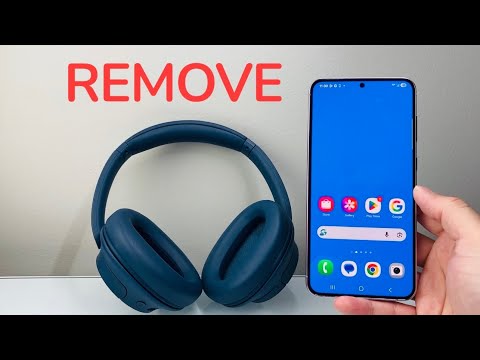
Managing the peripheral ecosystem of a Samsung Galaxy device requires a nuanced understanding of One UI’s Bluetooth stack. Whether you are troubleshooting connectivity interference or upgrading to a new hardware iteration, knowing how to efficiently remove, disconnect, or forget wireless headphones is a fundamental skill for maintaining a streamlined mobile workflow.
The Technical Distinction: Disconnect vs. Forget
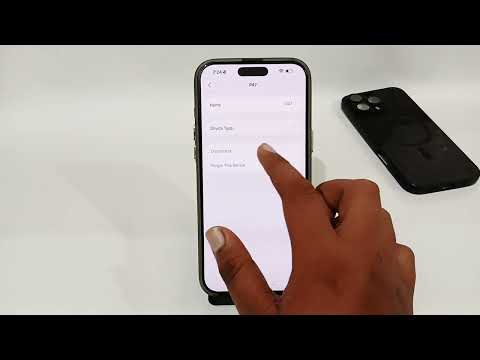
From a software architecture perspective, there is a significant difference between these two actions. Disconnecting a device simply terminates the active Bluetooth session while keeping the pairing keys in the device's local cache. Forgetting (or Unpairing) a device completely wipes the cryptographic handshake data, requiring a full re-pairing sequence the next time the hardware is used. For those seeking AI-driven efficiency, clearing the cache of unused devices prevents the system from polling for non-existent signals, thereby optimizing battery life and processor cycles.
Step-by-Step: Removing Headphones from Samsung One UI
To execute a clean removal of wireless headphones, follow these technical steps within the Samsung software environment:
1. Navigate to Settings by swiping down the notification shade and selecting the gear icon.
2. Select Connections, then tap on Bluetooth. Ensure the toggle is set to "On" to view the paired device list.
3. Locate the specific headphones you wish to remove. Tap the Settings (cogwheel) icon located to the right of the device name.
4. To temporarily stop the connection, select Disconnect at the bottom of the interface.
5. To permanently remove the device from your Samsung phone’s memory, tap Unpair. A confirmation prompt will appear; confirm to finalize the removal of the pairing keys.
Leveraging AI and Automation via Galaxy Wearable

For users within the Samsung ecosystem (using Galaxy Buds series), the Galaxy Wearable app utilizes proprietary automation to manage connections. This software includes "Seamless Connection" AI, which allows headphones to switch between Samsung tablets, TVs, and phones automatically. If you find your headphones re-connecting due to this automation, you must disable the "Auto Switch to Other Devices" feature within the Earbuds settings to ensure a clean manual disconnection.
AI Implementation Score: Device Management
Our assessment of how Samsung’s software utilizes automation and AI logic during the device removal process is summarized below:
| Metric | Score (1-10) | Technical Note |
|---|---|---|
| Automation Efficiency | 9/10 | Instantaneous handshake termination. |
| UI Intuition | 8/10 | Deeply nested but logically organized. |
| Device Synchronization | 10/10 | Cloud-synced unpairing via Samsung Account. |
| Persistence Management | 7/10 | Occasional auto-reconnect if "Seamless" is active. |
Troubleshooting Persistent Connections

In rare instances, software "ghosting" may occur where a device remains in the list despite an unpairing command. To fix this using system-level software management, navigate to Settings > Apps, enable "Show system apps," search for Bluetooth, and select Storage > Clear Cache. This flushes the temporary data buffers and ensures that your Samsung phone’s Bluetooth environment is optimized for high-performance audio throughput.
