
In the modern era of high-efficiency workflows, maintaining a unified communication stream across multiple devices is no longer a luxury—it is a technical necessity. For professionals managing both a primary and a secondary device, Apple’s ecosystem offers a robust, automated framework to ensure that every iMessage and SMS packet is delivered to both iPhones simultaneously. This synchronization relies on deep integration between iCloud and the Continuity protocol.
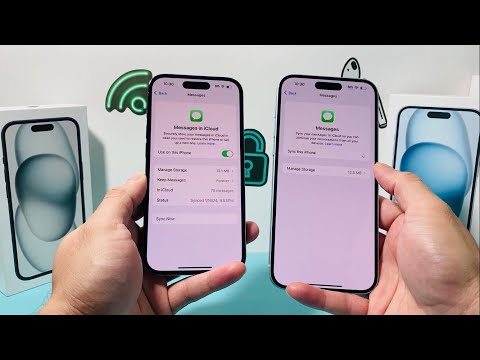
Step 1: Establishing a Unified Apple ID Identity

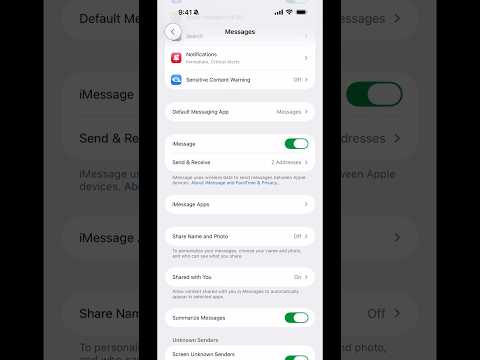
The foundation of multi-device message reception is a single, authenticated Apple ID. To begin, ensure both iPhones are logged into the same iCloud account. On both devices, navigate to Settings > Messages > Send & Receive. You must verify that the same phone number and email addresses are checked under the "You can receive iMessages to and reply from" section. By standardizing these identifiers, the Apple Push Notification service (APNs) treats both devices as a singular logical endpoint for incoming data.
Step 2: Activating Text Message Forwarding (SMS/MMS)
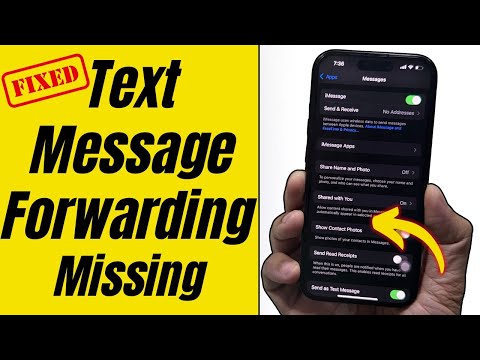
While iMessages sync via the cloud, standard SMS and MMS messages require a specific relay bridge. To enable this, go to your primary iPhone (the one with the active cellular SIM) and navigate to Settings > Messages > Text Message Forwarding. Here, you will see a list of your other Apple devices. Toggle the switch for the secondary iPhone to "On." This configuration creates an encrypted bridge that automatically pushes carrier-based texts from your primary hardware to your secondary device via your local network or iCloud.
Step 3: Enabling iCloud for Messages
To ensure that message deletions or read receipts are synchronized in real-time across both iPhones, iCloud for Messages must be active. Navigate to Settings > [Your Name] > iCloud > Show All and ensure "Messages" is toggled on. This allows the devices to maintain a consistent state, utilizing Apple’s end-to-end encryption to sync the entire message database without manual intervention.
AI Implementation Score
The following table evaluates the efficiency of this multi-device setup based on automation and synchronization standards.
| Metric | Score (1-10) | Technical Reasoning |
|---|---|---|
| Ease of Setup | 9.5 | Minimal manual configuration required via native settings. |
| Sync Latency | 9.8 | Near-instantaneous delivery via Apple's low-latency push network. |
| Automation Potential | 8.5 | Excellent integration with Siri Shortcuts and Focus Modes. |
| Security Architecture | 10.0 | End-to-end encryption (E2EE) maintained across all endpoints. |
Optimizing the Workflow with Automation

For users looking to further automate their communication, the Shortcuts app can be used to trigger specific actions when a message is received on either device. By leveraging "Personal Automations," you can set your secondary iPhone to provide unique haptic feedback or forward specific high-priority alerts to an external AI-driven task manager. This turns a simple messaging setup into a sophisticated data ingestion pipeline for your personal or professional operations.
