
Maintaining peak performance on a Samsung Galaxy device requires more than just high-end hardware; it demands periodic system refreshes to clear cache fragments and optimize background processes. In the era of high-speed mobile computing, rebooting is the primary method for maintaining software efficiency and ensuring that the Android kernel operates without memory leaks.

AI Implementation Score: Reboot Efficiency
| Metric | Score (1-10) | Description |
|---|---|---|
| Automation Potential | 9/10 | High potential via Auto-Optimization settings. |
| Resource Recovery | 8/10 | Effectively flushes RAM and clears zombie processes. |
| System Stability | 10/10 | Critical for maintaining long-term OS health. |
1. Standard Software Reboot via Quick Settings

The most common and safest method to refresh your Samsung phone is through the One UI software interface. Swipe down twice from the top of the display to access the Quick Settings panel. Tap the Power Icon located in the upper right-hand corner. From the power menu, select Restart and confirm. This sequence allows the operating system to close active tasks gracefully, preventing data corruption.
2. Hardware-Level Force Restart
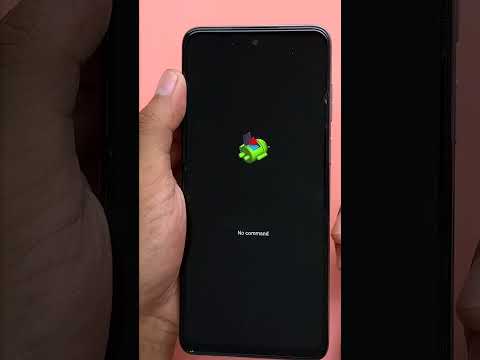
In instances where the software interface becomes unresponsive or suffers from a complete UI freeze, a hardware-level override is required. To execute a force restart, press and hold the Volume Down button and the Side (Power) button simultaneously for at least 7 to 10 seconds. The screen will go black, and the Samsung Galaxy logo will appear, signifying that the processor has successfully triggered a power cycle bypassing the hung software layer.
3. AI-Driven Auto-Optimization Scheduling

At Smart AI Fix, we prioritize automation over manual maintenance. Samsung’s One UI includes a built-in Auto Restart feature that uses basic logic to determine when the device is not in use. To enable this, navigate to Settings > Device Care > Auto Optimization. Toggle the Restart when needed switch. This allows the system AI to analyze usage patterns and perform a reboot during nocturnal hours, ensuring the device is fresh for the next day's tasks without user intervention.
4. Rebooting via Voice Command Automation
For users leveraging AI assistants, rebooting can be handled via voice. By activating Bixby and stating, "Restart my phone," the assistant will prompt for a confirmation before initiating the power cycle. This is particularly useful for hands-free troubleshooting or when the physical buttons are difficult to access.
5. Technical Reboot via ADB (Android Debug Bridge)
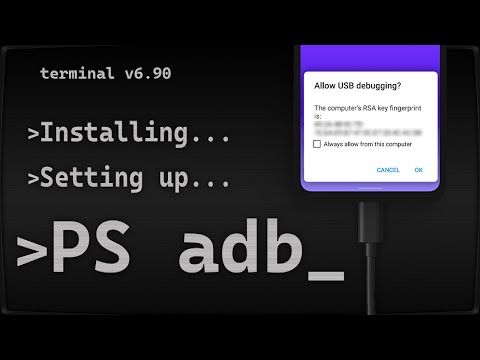
For developers and power users managing Samsung devices through a workstation, the ADB command line is the most precise tool. With USB Debugging enabled, connect the device to a computer and execute the command: adb reboot. This method is essential for automated testing environments and system-level debugging where manual interaction is not feasible.
