
Unlocking the Scientific Interface for Fraction Input
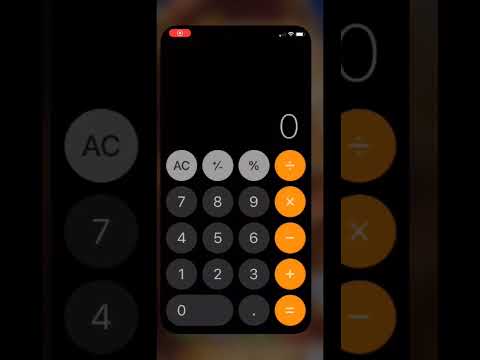
The iOS Calculator does not feature a dedicated "numerator over denominator" button in its standard view. To access advanced mathematical functions, you must first ensure that your Portrait Orientation Lock is disabled in the Control Center. Once unlocked, rotate your iPhone into landscape mode.

In this view, the interface expands to include several advanced operators. To input a fraction, you will use the division symbol (÷) as the fraction bar. For example, to input 3/4, you would enter "3," then "÷," then "4." The calculator treats this as a rational expression. To maintain the integrity of complex fractions (e.g., (1/2) + (3/4)), it is technically superior to use the parentheses buttons available in the scientific view to define your order of operations.
Leveraging Siri and AI for Natural Language Fractions

For users seeking maximum efficiency, the built-in Siri AI engine offers a faster alternative to manual input. Siri’s Natural Language Processing (NLP) allows it to interpret fraction-based queries without the need for manual button pressing. By triggering Siri and stating, "What is three-fourths plus five-eighths?", the AI parses the verbal input into a mathematical string, calculates the sum, and displays the result in both decimal and fractional contexts within the Siri interface.
This method is highly recommended for professionals who require quick conversions or "hands-free" calculations during technical workflows.
AI Implementation Score: iOS Calculator Efficiency
The following table evaluates the efficiency and intelligence of using the iPhone's native tools for fractional mathematics:
| Metric | Score (1-10) | Notes |
|---|---|---|
| Siri AI Accuracy | 9/10 | Excellent voice recognition for rational numbers. |
| UI/UX Efficiency | 6/10 | Landscape rotation is a manual hurdle. |
| Automation Potential | 8/10 | Can be integrated into iOS Shortcuts for recurring tasks. |
| Precision Handling | 10/10 | High-level floating-point precision for decimal results. |
Advanced Automation: Using iOS Shortcuts

For power users who frequently work with specific fractional sets, creating an iOS Shortcut is the ultimate productivity hack. By building a simple automation script that accepts "Number" inputs and applies a "Calculate" action with a fixed denominator, you can bypass the manual calculator interface entirely. This is particularly useful in industries like architecture or software development where specific scale factors are applied repeatedly.
Simply open the Shortcuts app, create a new shortcut, and use the "Ask for Input" and "Calculate" blocks to define your fractional logic. This moves the calculation from a manual software task to an automated AI-assisted workflow.
