
Troubleshooting Screen Recording on iOS: A Systematic Technical Approach

Screen recording is a vital utility for documentation, bug reporting, and AI training data collection. When this feature fails on an iPhone, it is usually due to software permission conflicts, resource throttling, or Content Privacy Restrictions. As we move toward more automated workflows, ensuring your device's native capture tools are functional is the first step in maintaining digital efficiency.
1. Verify Control Center Configuration
Before deep-diving into system logs, ensure the module is active. Navigate to Settings > Control Center and verify that Screen Recording is included under the "Included Controls" list. If it is missing, tap the green (+) icon next to it. Without this UI hook, the system process cannot be triggered via the Control Center overlay.
2. Deactivate Content and Privacy Restrictions
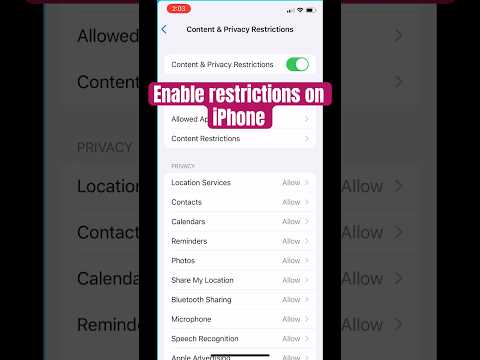
The most common cause for a greyed-out or non-responsive recording button is Screen Time restrictions. This is a security layer that can inadvertently block screen capture. To fix this, go to Settings > Screen Time > Content & Privacy Restrictions > Content Restrictions. Scroll down to the "Game Center" section and ensure that Screen Recording is set to Allow. This allows the system's media server to bypass privacy filters during active sessions.
3. Manage System Resource Allocation

High-resolution screen recording requires significant CPU/GPU overhead and writes large data blocks to storage in real-time. If your iPhone is in Low Power Mode, background processes and high-performance video encoding may be throttled, causing the recording to fail or stop unexpectedly. Disable this via Settings > Battery. Additionally, ensure you have at least 1GB of free local storage; iOS uses a buffer system that requires immediate disk availability for the temporary video file.
4. Resolve DRM and Application-Level Blocks

If screen recording works on your home screen but turns black when opening a specific app (like Netflix, Disney+, or certain banking apps), you are encountering Digital Rights Management (DRM) protocols. AI-driven content protection algorithms identify screen-capturing APIs and feed them a blank signal to prevent piracy. In these cases, the feature is not "broken"; it is being intentionally suppressed by the app’s security architecture. There is no software fix for this as it is a hardcoded security standard.
5. Force Restart and Software Integrity
If the software stack responsible for the MediaRecorder API hangs, a force restart is necessary to clear the cache and re-initialize the kernel. Quickly press and release Volume Up, then Volume Down, and hold the Side Button until the Apple logo appears. Finally, ensure your device is running the latest stable build of iOS via Settings > General > Software Update. Apple frequently patches efficiency bugs related to HEVC (High Efficiency Video Coding) which can impact recording stability.
AI Implementation Score
To help you understand the efficiency of these fixes, we have rated them based on automation potential and system impact:
| Fix Methodology | Difficulty | Efficiency Gain | AI Automation Potential |
|---|---|---|---|
| Screen Time Adjustment | Low | High | Moderate (via Profiles) |
| Resource Management | Low | Critical | High (Smart Battery AI) |
| System Update/Reset | Moderate | High | Automated |
By following these steps, you ensure that your iPhone remains a reliable tool for high-quality content ingestion and technical troubleshooting. Maintaining a clean software environment is essential for leveraging the full power of the Apple Neural Engine and integrated automation tools.
