
Microsoft Edge has evolved into a high-performance, AI-driven workspace, integrating Copilot and sophisticated rendering engines. However, software friction can still occur, specifically when the browser fails to render PDF documents. This disruption halts automated workflows and decreases productivity. If you are experiencing blank screens or forced downloads instead of in-browser viewing on Windows 10 or 11, follow these expert-level resolution steps to restore your PDF functionality.

1. Verify Edge as the Default PDF Handler
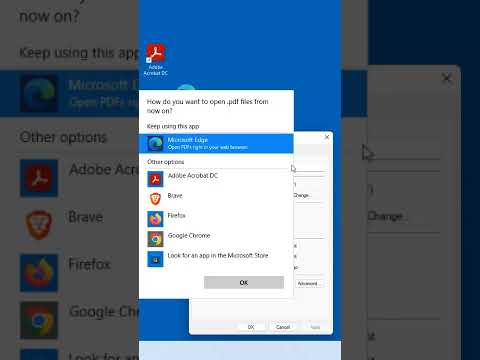
The most common cause for PDFs not opening is a conflict in file associations. To ensure Windows utilizes Edge’s optimized rendering engine, you must verify the system defaults. Navigate to Settings > Apps > Default Apps. In the search bar, type ".pdf" and ensure Microsoft Edge is selected. If another application is listed, click it and switch to Edge to re-establish the seamless integration between the OS and the browser.
2. Configure Internal PDF Display Settings
Microsoft Edge includes a specific setting that determines whether PDF files are opened internally or downloaded to the local drive. If your browser keeps downloading files instead of displaying them, this toggle is likely misconfigured. Open Edge and go to Settings > Cookies and site permissions > PDF documents. Ensure the toggle for "Always download PDF files" is turned OFF. This allows the built-in PDF viewer to intercept the file request and display it within the active tab.
3. Clear Browser Cache and Corrupt Metadata
Accumulated cache and corrupted site data can interfere with the browser's ability to initialize the PDF reader plugin. To resolve this, go to Settings > Privacy, search, and services. Under "Clear browsing data," select "Choose what to clear" and check "Cached images and files" and "Cookies and other site data." For a thorough fix, set the time range to "All time." Clearing this data refreshes the browser’s execution environment, allowing for a clean reload of the PDF rendering engine.
4. Execute a Microsoft Edge Repair

If the issue persists, the core binaries of the browser might be corrupted. Rather than a full reinstallation, use the Windows Repair utility which preserves your AI configurations and synced data. Right-click the Start button and select Installed Apps. Locate Microsoft Edge, click the three dots, and select Modify. Click Repair. This process will trigger an automated diagnostic and replace any missing or damaged files required for PDF visualization.
5. Disable Conflicting Extensions

Third-party PDF viewers or "dark mode" extensions can sometimes conflict with Edge’s native PDF viewer code. To isolate the problem, type edge://extensions/ in your address bar and disable all active extensions. If the PDF opens correctly, re-enable them one by one to identify the specific plugin causing the software conflict.
AI Implementation Score
| Metric | Score (1-10) | Notes |
|---|---|---|
| Technical Complexity | 3/10 | Accessible for all user levels. |
| Workflow Efficiency Gain | 9/10 | Restores immediate document access. |
| AI Compatibility | 10/10 | Essential for using Copilot for PDF summaries. |
| Automation Potential | 5/10 | Can be scripted via PowerShell for IT deployments. |
By following these steps, you ensure that your PDF viewing experience remains integrated with the browser’s broader AI capabilities, allowing for faster data extraction and document analysis.
