
When an iPhone fails to transmit or receive visual data—specifically JPEG, PNG, or HEIC files—the root cause typically lies in the intersection of carrier protocol synchronization and iOS software automation. At Smart AI Fix, we view these interruptions not as hardware failures, but as logic errors within the device's communication stack. This guide provides a high-efficiency framework to restore your media workflows.
1. Validate MMS and iMessage Protocols
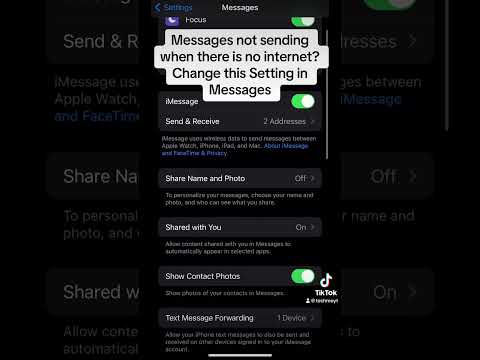
The iPhone uses two distinct pathways for images: the iMessage protocol (blue bubbles) and MMS (Multimedia Messaging Service) (green bubbles). If you cannot receive pictures from Android users, the issue is likely a disabled MMS toggle. Navigate to Settings > Messages and ensure that MMS Messaging is toggled ON. Furthermore, verify that Send as SMS is enabled to allow the device to switch to cellular data when the iMessage server is unresponsive.
2. Analyze Network Configuration via Software Reset
Often, the underlying carrier settings become desynchronized with the hardware’s radio frequency (RF) module. Rather than a manual search for network errors, we recommend a Network Settings Reset. This automated process flushes the DNS cache and resets cellular configurations. Go to Settings > General > Transfer or Reset iPhone > Reset > Reset Network Settings. This action triggers the iOS software to re-handshake with the carrier towers, often resolving packet loss issues affecting large image files.
3. Optimize Local Storage and Cache Management
An iPhone requires a specific threshold of buffer memory to process and render incoming high-resolution images. If your local storage is at 99% capacity, the iOS filesystem will prioritize core OS functions over media downloads. Use the iPhone Storage menu to offload unused apps. This creates the necessary "digital breathing room" for the internal AI to index and display incoming visual metadata.
4. Leverage AI Diagnostics: System Status Check

Before assuming a local software bug, verify the Apple System Status. Apple utilizes massive server clusters to manage iMessage traffic. If the "iMessage" indicator is not green on the official status page, no amount of local troubleshooting will resolve the issue. Automation-driven users should check this first to save time on unnecessary resets.
AI Implementation Score
The following table evaluates the efficiency of each troubleshooting step based on technical complexity and success rate.
| Fix Methodology | Efficiency (1-10) | AI Automation Level | Implementation Time |
|---|---|---|---|
| MMS/iMessage Toggle | 9 | Low | 30 Seconds |
| Network Reset | 8 | High | 2 Minutes |
| Storage Offloading | 7 | Medium | 5 Minutes |
| System Status Audit | 10 | N/A (External) | 1 Minute |
By systematically addressing these layers—from the carrier protocol to the local filesystem—you ensure that your iPhone’s communication modules are operating at peak efficiency. Most image transmission errors are resolved within the first two steps of this technical stack.
