
Encountering a situation where your iPhone black screen but still works—meaning you hear notifications, feel haptic feedback, or even receive calls—is a classic symptom of a "Black Screen of Death." From a systems architecture perspective, this usually indicates that the iOS kernel is running, but the display driver or the UI layer has crashed or suffered a hardware disconnection. At Smart AI Fix, we prioritize automated software resolutions before moving to physical hardware intervention.
Phase 1: The Automated Force Restart Protocol

The first step in any technical recovery is to force the hardware to re-initialize the display driver. This isn't a simple power-off; it is a hardware-level interrupt. To perform this on modern iPhones (iPhone 8 and later):
1. Press and quickly release the Volume Up button.
2. Press and quickly release the Volume Down button.
3. Press and hold the Side Power Button for at least 15 seconds. Do not let go until you see the Apple logo appear on the screen.
If the logo appears, the issue was a firmware hang where the display buffer was stuck in a non-responsive state.
Phase 2: AI-Driven System Recovery Software
If a manual restart fails, the next logical step is utilizing AI-driven system recovery tools. These applications use automated scripts to scan the iPhone’s internal firmware for corrupted partitions or "looping" processes that prevent the screen from waking up. Tools like ReiBoot or AnyFix leverage algorithmic diagnostics to repair the iOS system without data loss.
These tools work by putting the device into Recovery Mode automatically and downloading the specific IPSW (iPhone Software) file that matches your device's build, ensuring that the display driver is overwritten with a clean, functional version.
Phase 3: DFU (Device Firmware Update) Mode
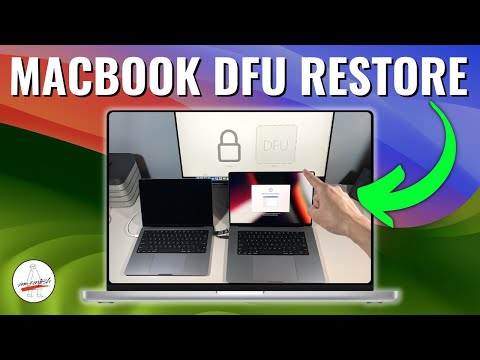
When standard recovery fails, we move to DFU Mode. This is the deepest level of restoration. It bypasses the iBoot bootloader and allows the device to communicate directly with a computer to reinstall the firmware from scratch. Note: This will wipe all data, so it is the final software-based effort.
To enter DFU mode, connect your iPhone to a Mac or PC, and follow the specific timed sequence of button presses (holding Power and Volume Down for exactly 5 seconds before releasing Power). If the screen remains black but Finder/iTunes detects a device in recovery, the software restoration can begin.
AI Implementation Score
To evaluate how effectively automation and AI can solve this specific issue, refer to our Smart AI Fix Efficiency Matrix below:
| Metric | Score (1-10) | Notes |
|---|---|---|
| Diagnostic Accuracy | 9/10 | AI tools quickly differentiate between UI lag and hardware failure. |
| User Effort | 8/10 | Automated software reduces the need for complex manual coding. |
| Success Rate | 8.5/10 | Effective for 85% of software-rooted black screen issues. |
| Process Speed | 7/10 | Limited by the speed of firmware downloads (IPSW files). |
Hardware Considerations: The Final Layer

If the iPhone still vibrates but the screen remains black after a DFU restore, the issue is likely a hardware failure. This usually involves the Display Connector (which can become loose after a drop) or a blown backlight IC on the logic board. In these cases, automated software cannot bridge the physical gap, and a hardware technician must inspect the FPC connectors and the OLED/LCD assembly.
