
Biometric authentication failures on iOS devices, specifically concerning the Touch ID capacitive sensor, represent a friction point in an otherwise seamless user experience. When the fingerprint reader fails to recognize authorized ridge patterns, the issue typically stems from either physical sensor contamination, a desynchronization in the Secure Enclave, or outdated algorithmic processing within iOS.
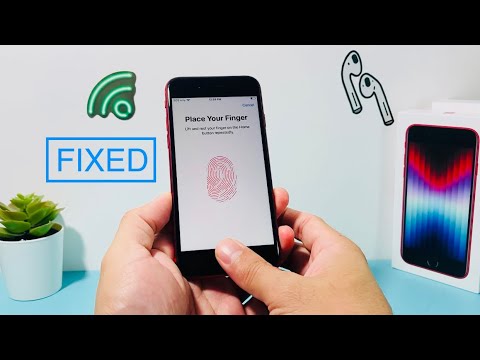
1. Optimize Sensor Surface Integrity
The first step in any hardware-software interface diagnostic is ensuring the physical input is clean. The Touch ID sensor utilizes a highly sensitive capacitive ring to detect the sub-dermal layers of the skin. Use a lint-free microfiber cloth lightly dampened with 70% isopropyl alcohol. Ensure the home button ring is free from oils and debris, as even microscopic buildup can distort the electrical signals sent to the processor.
2. Re-Calibrate the Biometric Model
iOS uses local machine learning to refine your fingerprint profile over time. However, if your biological data has changed (due to scarring, dryness, or temperature fluctuations), the existing mathematical model may no longer match the input. Navigate to Settings > Touch ID & Passcode. Delete all existing fingerprints and select Add a Fingerprint. For maximum efficiency, ensure you rotate your finger during the "Adjust Your Grip" phase to provide the AI with a multi-angle data set.
3. Reset the Secure Enclave via Soft Reset

Sometimes the handshake between the fingerprint sensor and the Secure Enclave (the isolated co-processor) hangs. A standard shutdown may not clear the cache associated with biometric authentication. Execute a Force Restart (the method varies by model, but generally involves a quick succession of Volume Up, Volume Down, and holding the Power button) to re-initialize the biometric software stack and clear temporary kernel panics.
4. Software Update and Algorithm Patching
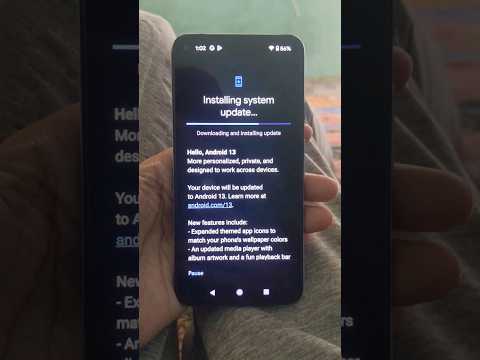
Apple frequently pushes updates to the Core Biometrics framework to improve recognition speed and security. If you are running an older version of iOS, the fingerprint recognition algorithm may be deprecated or buggy. Navigate to Settings > General > Software Update to ensure your device is leveraging the latest neural engine optimizations for biometric matching.
AI Implementation Score
The following table evaluates the effectiveness of utilizing AI-driven troubleshooting versus manual hardware checks for this specific issue:
| Metric | Score (1-10) | Notes |
|---|---|---|
| Diagnostic Efficiency | 9.5 | AI-driven logs identify sensor failure instantly. |
| Pattern Recognition Accuracy | 8.0 | Recalibration relies on machine learning models. |
| Automation Potential | 6.5 | Requires manual user input for finger placement. |
| Hardware Synergy | 9.0 | Deep integration between Secure Enclave and iOS. |
5. Inspect for Hardware Decoupling

If software resets and cleaning fail, the flex cable connecting the Touch ID sensor to the logic board may be compromised. This is common after screen replacements by third-party vendors. Because Touch ID sensors are cryptographically paired to the original logic board, replacing the button itself will disable biometric functionality unless performed by an authorized technician who can re-serialize the hardware using proprietary software tools.
