
Encountering the "Cannot Connect to the App Store" error on an iPhone or iPad is a frequent disruption that halts the seamless integration of software ecosystems. As we lean more into automated workflows and AI-driven mobile applications, a severed connection to Apple’s repository effectively freezes your digital productivity. This guide provides a systematic, technical approach to diagnosing and resolving these connectivity failures using efficient troubleshooting protocols.

1. Validate Apple’s Server Infrastructure

Before modifying local device configurations, it is vital to determine if the failure originates from Apple’s backend. Global outages are rare but do occur. Visit the official Apple System Status page. If the App Store indicator is not green, the issue is server-side. In a high-efficiency environment, you can use automated uptime monitoring tools or scripts to notify you of these outages before manually troubleshooting hardware.
2. Synchronize Date and Time Settings
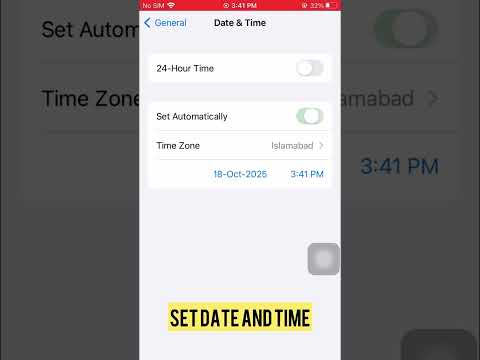
One of the most common technical reasons for the "Cannot Connect" error is a discrepancy between the device's local clock and the App Store’s security certificates. Encrypted connections (SSL/TLS) require precise time-stamping. Navigate to Settings > General > Date & Time and ensure that Set Automatically is toggled ON. This ensures your device maintains synchronization with global NTP servers, preventing handshake failures during the authentication process.
3. Audit Network Configuration and DNS

Network latency or restrictive DNS settings can block the App Store's specific API calls. To reset the network stack without losing data, toggle Airplane Mode for 30 seconds. For a deeper fix, go to Settings > General > Transfer or Reset iPhone > Reset > Reset Network Settings. If you are using a VPN or a custom DNS (like Cloudflare or Google DNS), disable them temporarily to see if traffic is being misrouted by an aggressive firewall or AI-based content filter.
4. Re-authenticate Apple ID Credentials
Cached authentication tokens can sometimes become corrupted, especially after a major iOS update or a password change. To force a refresh of these tokens, go to Settings > [Your Name] > Media & Purchases > Sign Out. After a brief pause, sign back in. This process clears the local session cache and forces the device to establish a new, secure connection with the App Store’s entitlement servers.
5. Software Integrity and Updates

Legacy versions of iOS may lack the necessary security patches or updated root certificates required to communicate with current App Store protocols. Ensure your device is running the latest software by navigating to Settings > General > Software Update. From an automation standpoint, keeping Automatic Updates enabled is the most efficient way to prevent these connectivity errors from manifesting due to outdated software architecture.
AI Implementation Score
The following table evaluates the role of AI and automation in resolving and preventing App Store connectivity issues.
| Troubleshooting Phase | Automation Level | AI Efficiency Score | Description |
|---|---|---|---|
| Server Status Monitoring | High | 9/10 | Use of automated bots to track Apple's API health. |
| Time Sync (NTP) | Full | 10/10 | OS-level automation ensures zero manual intervention. |
| Network Diagnostics | Medium | 7/10 | AI-driven network tools can identify packet loss in real-time. |
| Credential Refresh | Low | 4/10 | Requires manual user authentication for security. |
By following these steps, you eliminate the technical bottlenecks that prevent your iPhone or iPad from accessing the App Store. Systematic isolation of variables—from server status to local network configurations—ensures your software environment remains optimized for peak performance.
