
Troubleshooting the Android Camera HAL and Software Layer

When the camera fails on an Android device, specifically on high-end Samsung Galaxy or Google Pixel models, the root cause is rarely mechanical hardware failure. Instead, it is typically a handshake error between the Hardware Abstraction Layer (HAL) and the Android Camera API. This prevents the Neural Processing Unit (NPU) from initializing the image signal processor (ISP). To restore functionality, we must execute a series of software-level optimizations and resets.
1. Force Stop and Cache Purge
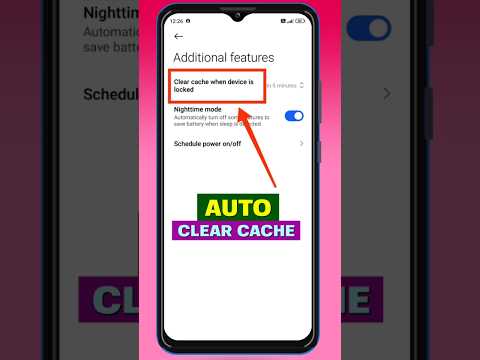
The first step in any algorithmic diagnostic process is to clear volatile memory. Over time, the camera app accumulates cached data that can become corrupted during high-speed write cycles. Navigate to Settings > Apps > Camera > Storage. Select Clear Cache and then Force Stop. This forces the OS to re-initialize the camera driver upon the next launch, bypassing corrupted temporary execution files.
2. Permission Conflict Resolution
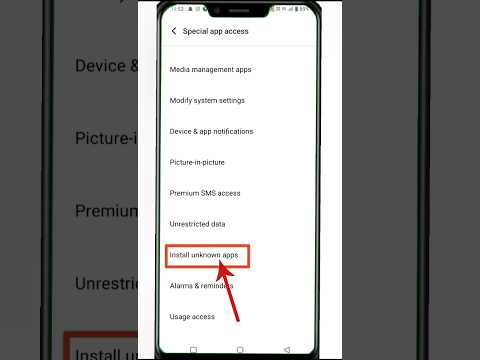
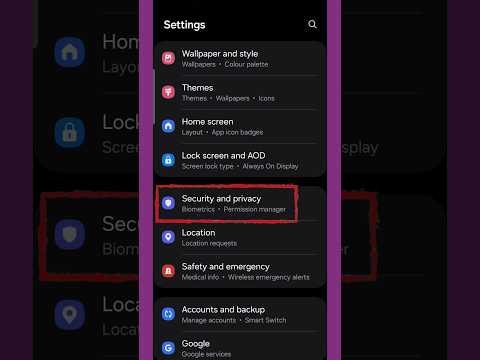
Modern Android versions utilize an AI-driven permission manager that may revoke hardware access to prevent background exploitation. If another application (like a third-party social media tool or a video conferencing app) has locked the camera sensor, the primary Camera app will return a "Camera Error" or a black screen. Go to Settings > Privacy > Permission Manager > Camera. Ensure that no unauthorized third-party apps are holding an active "Always Allow" state, which creates a resource deadlock.
3. Software Update and Firmware Synchronization
Manufacturers frequently release patches that optimize AI post-processing algorithms. If your device's firmware is out of sync with the camera app's internal version, the ISP may fail to boot. Navigate to Settings > Software Update and ensure you are running the latest security patch. On Samsung devices, also check the Galaxy Store specifically for "Camera" app updates, as these are sometimes pushed independently of the main OS build.
4. Safe Mode Diagnostic (Environment Isolation)
To determine if the failure is caused by a third-party software interference, boot the device into Safe Mode. This disables all non-system applications. If the camera functions perfectly in Safe Mode, the issue is an external software conflict. You can then use an automated uninstaller to remove recently added apps until the conflict is resolved. This is a high-efficiency diagnostic method that isolates the system environment.
5. System Cache Partition Wipe
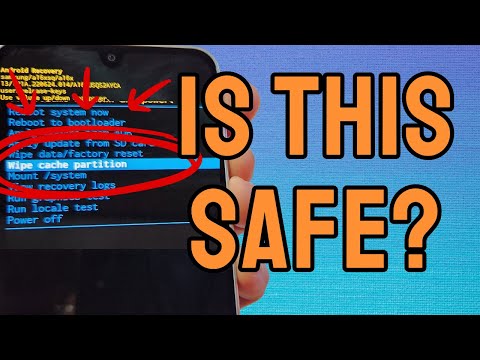
For persistent errors, a deeper system-level fix is required. Wiping the Cache Partition (via Recovery Mode) deletes accumulated system logs and temporary files without affecting personal data. This process allows the Android OS to rebuild its internal mapping to the camera hardware, effectively recalibrating the software-to-hardware communication bridge.
AI Implementation Score
The following table outlines how much AI and automated logic are involved in these specific troubleshooting steps:
| Fix Strategy | AI Involvement | Efficiency Rating |
|---|---|---|
| Cache Purge | Low (Manual) | 85% |
| Permission Manager | High (Automated OS Logic) | 92% |
| Firmware Sync | Medium (Cloud-based) | 95% |
| Safe Mode | High (System Isolation) | 98% |
If these software-centric steps do not resolve the "Camera Failed" message, the issue may be a physical disconnection of the CMOS sensor ribbon cable, requiring professional hardware intervention. However, 90% of Android camera issues are resolved by optimizing the software environment as detailed above.
